Set up Single Sign-on
SAML single sign-on lets your team sign in to the Instatus dashboard or your private status page through your own identity provider. It requires the Business plan and is configured through OrbitID.
How do I set up SSO?
Upgrade to the Business plan, open Single Sign-On in your team dashboard, click Setup SSO, enter your organization's email domains, then finish the configuration in OrbitID with your identity provider.
Log in at instatus.com/login and select your team. If you already have a Business plan, skip the first step.
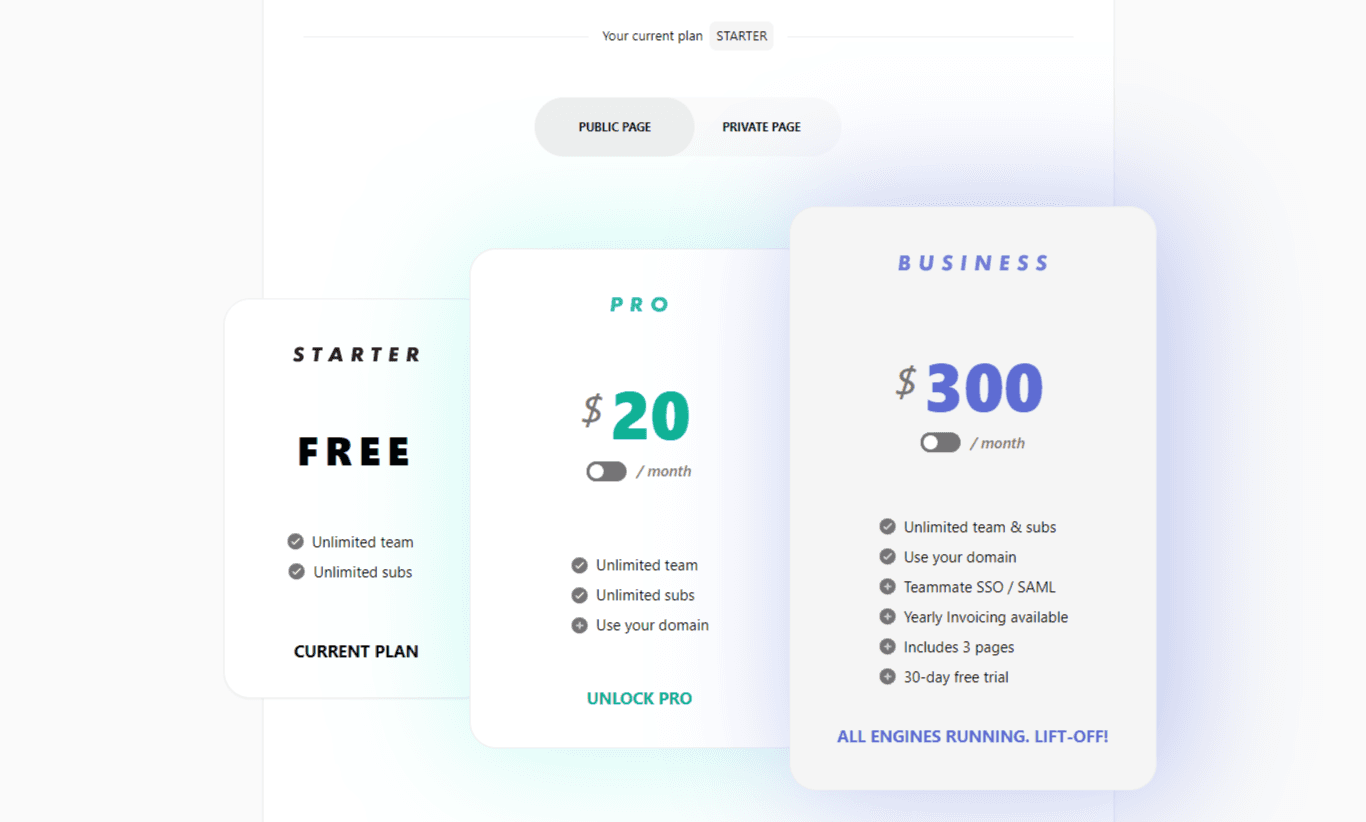
- Open the workspace menu in the sidebar, choose Billing, and upgrade to a Business plan.
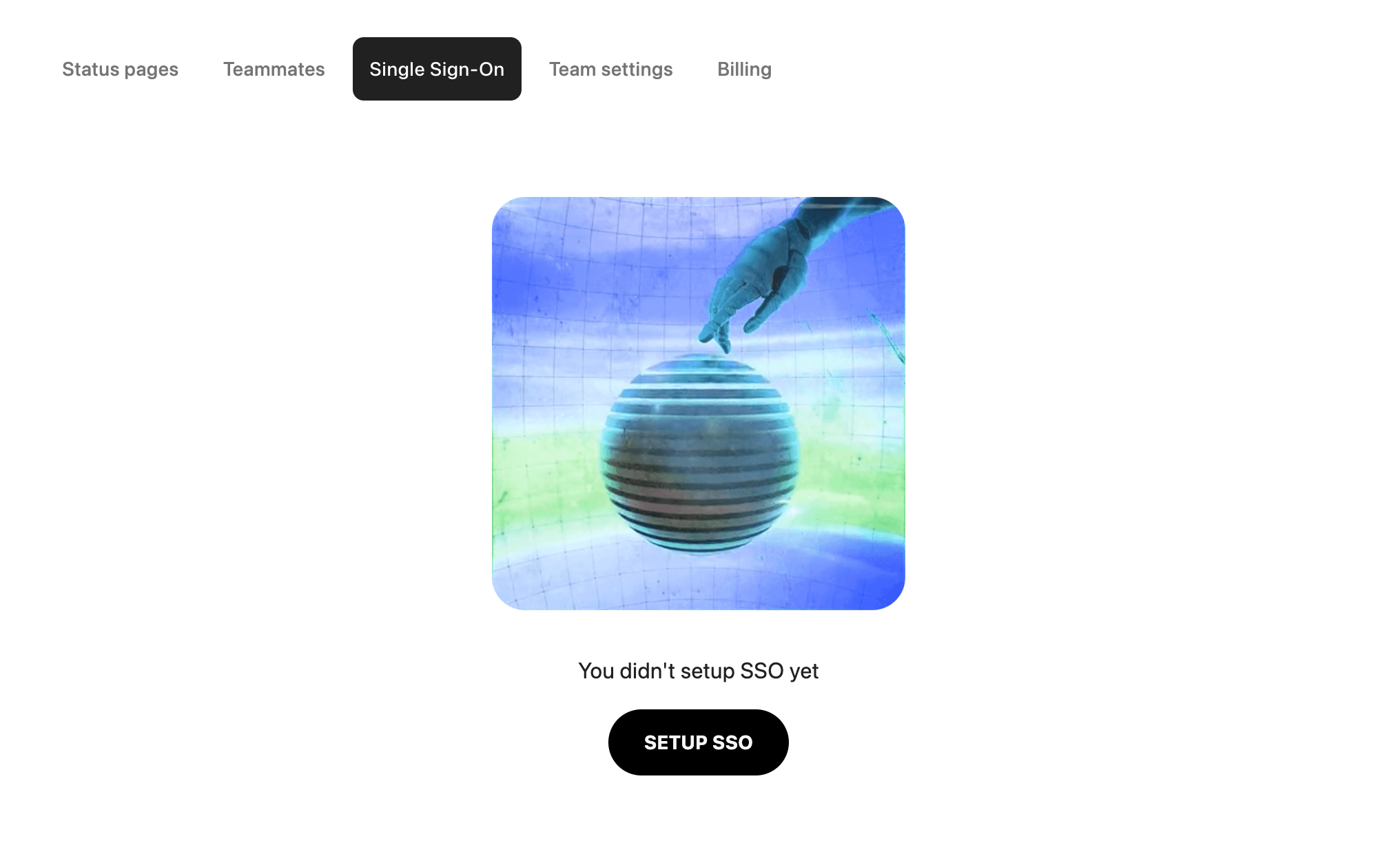
- In the team's dashboard, select Single Sign-On and click on Setup SSO.
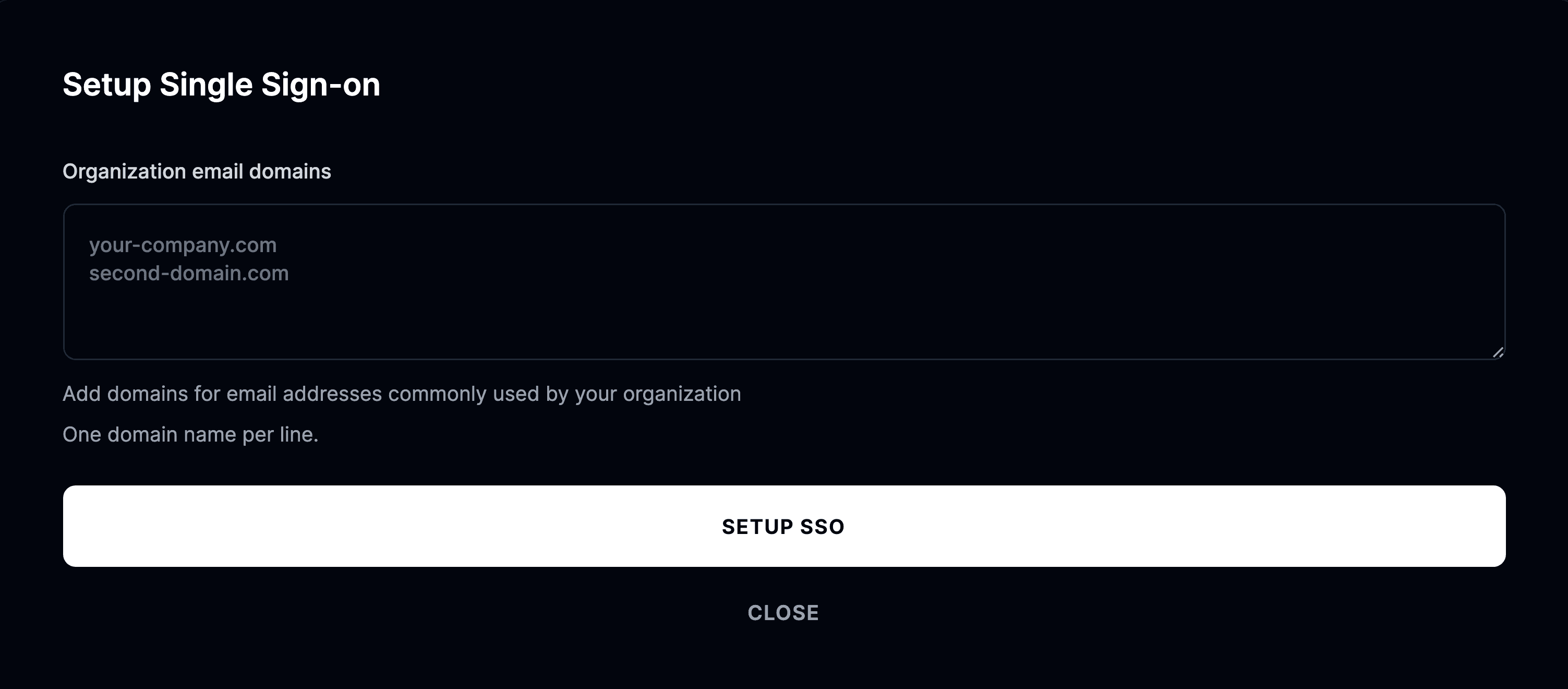
- Enter the domains that your organization frequently uses and select Setup SSO.
-
You will be redirected to OrbitID, our identity platform. On OrbitID, choose your identity provider.
-
Following the selection of a provider, a guide will walk you through the SSO configuration process.
Which identity providers are supported?
Instatus supports these identity providers through OrbitID:
- Okta
- Google SAML
- Microsoft Azure
- Microsoft ADFS
- SAML
- Duo
- ADP
- Jump Cloud
- Keycloak
- LastPass
- miniOrange
- NetIQ
- OneLogin
- Oracle Cloud
- PingOne
- PingFederate
- Salesforce
- VMware
- OpenID
- CAS
- ClassLink
- Cloudflare
- CyberArk
- SimpleSAMLphp
- Auth0