Get started with private status pages
Private status pages are visible only to people who pass one of the access methods you enable: email login, Google SSO, an IP allowlist, a single password, a secure link, or SAML SSO. They work as an internal dashboard for your teams, or as a status page for partners and clients.
You may limit access to your page by allowing only:
- Email login
- Google SSO
- IP Allowlist
- Single password
- Secure link
- SAML SSO (only available to Business plan)
How do I make my status page private?
Upgrade to a Private Pro or Business plan, go to Status page → Page type, select Private, then enable at least one access method and save.
- Login to Instatus from instatus.com/login then choose your status page.
You'll need to have a Private Pro or Business plan in order to be able to make your status page private.
If you already have a Pro or Business plan you may skip the next step.
- Open the workspace menu in the sidebar, choose Billing, and switch to either a Private Pro or Business plan.
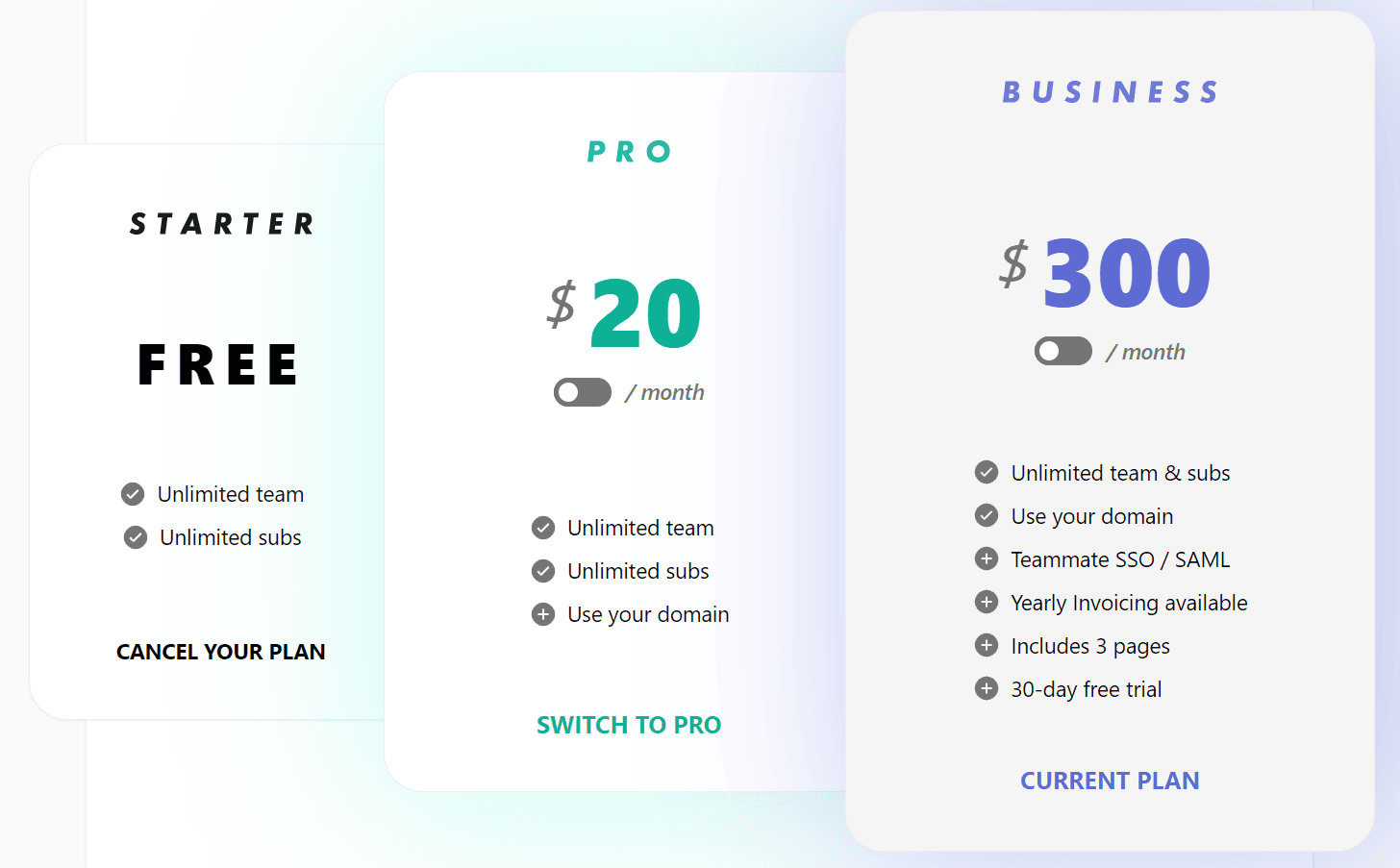
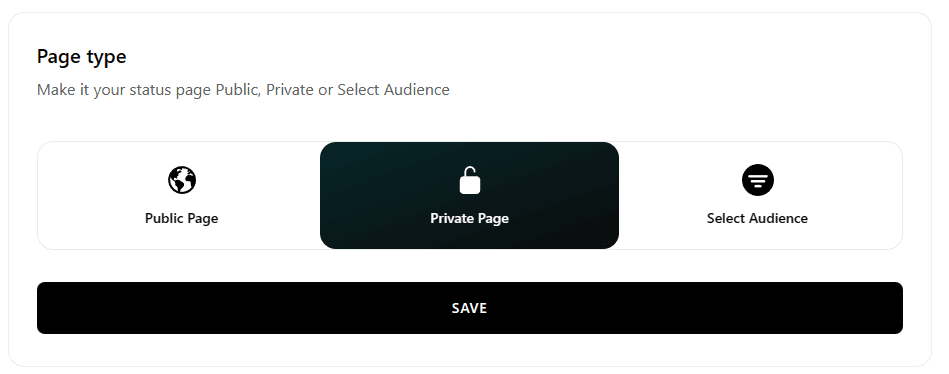
- After upgrading go to Status page → Page type.
- Select 'Private' from 'Page Type' panel and save.
- This unlocks Privacy Setting, where you can choose one of these options:
- Email login: Allow members of your team to login to your status page using their email address.
- Google SSO: Allow members of your team to use Google Auth to access your status page.
- Allowed IP addresses: allow certain IPs to access the page and you'll be able to add Allowed IP addresses.
- Single Password: Allows you to create a single password and share it to all members of your team.
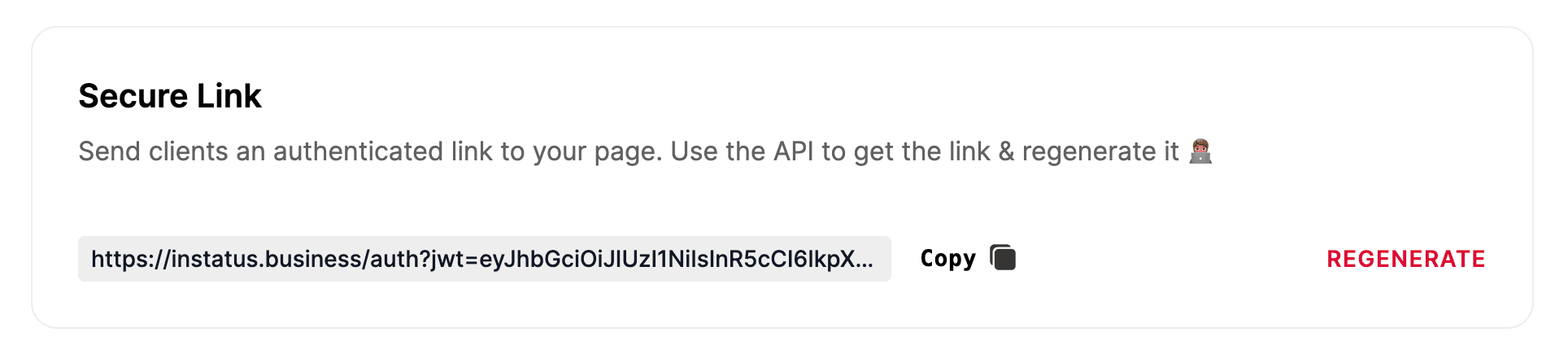
- Secure link: Create an authenticated link that you can share with clients. You can always regenerate it using our API or the dashboard.
- SAML SSO will only allow members of your team to access the status page using SAML SSO (only available to Business plan)
If you choose multiple options, your teammates will be able choose any of them to access the page.
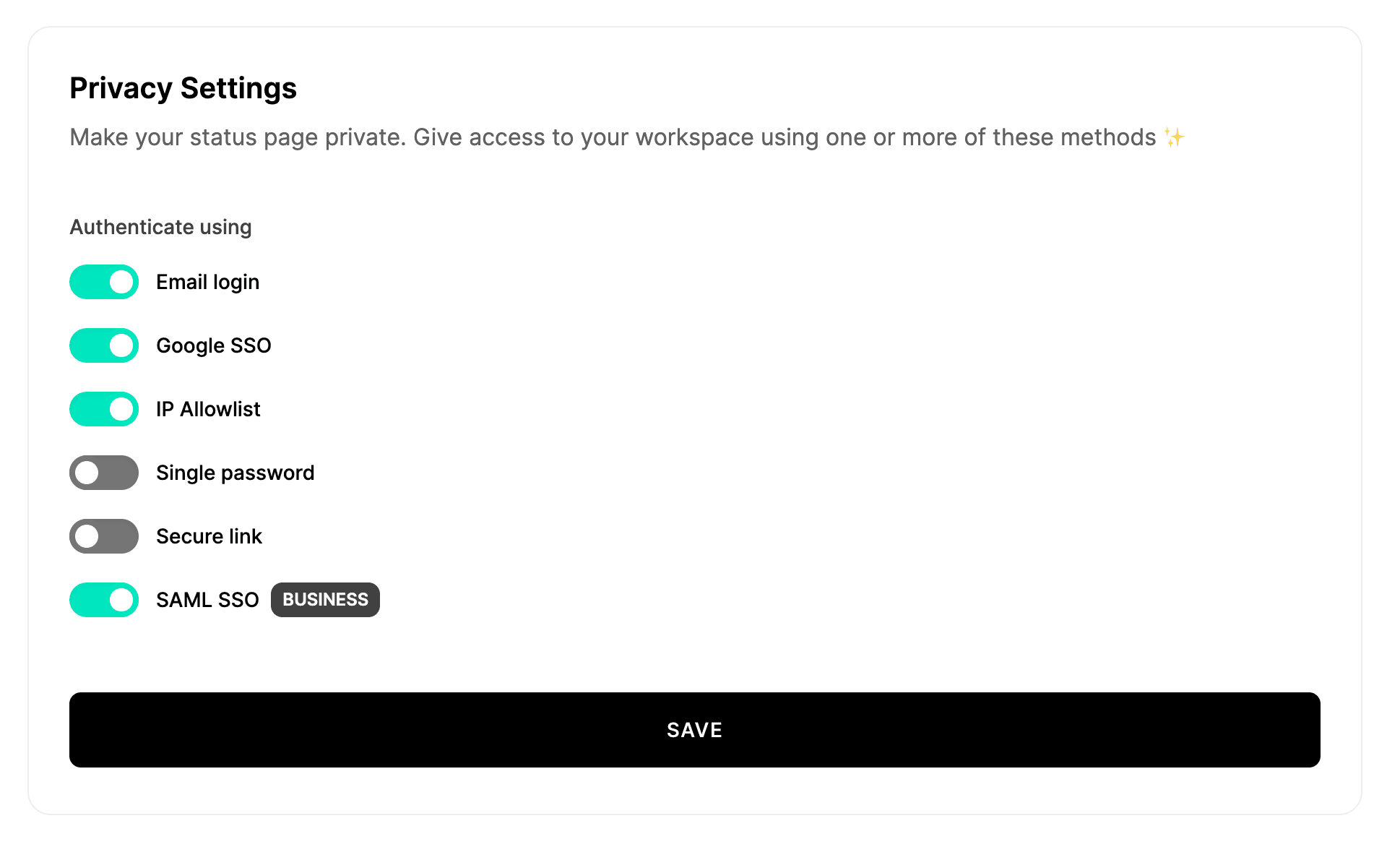
- Choose how you want to make your status page private and click Save, it may take a couple of minutes for changes to take effect.
Which access methods are available for a private page?
Each method changes what the login page looks like:
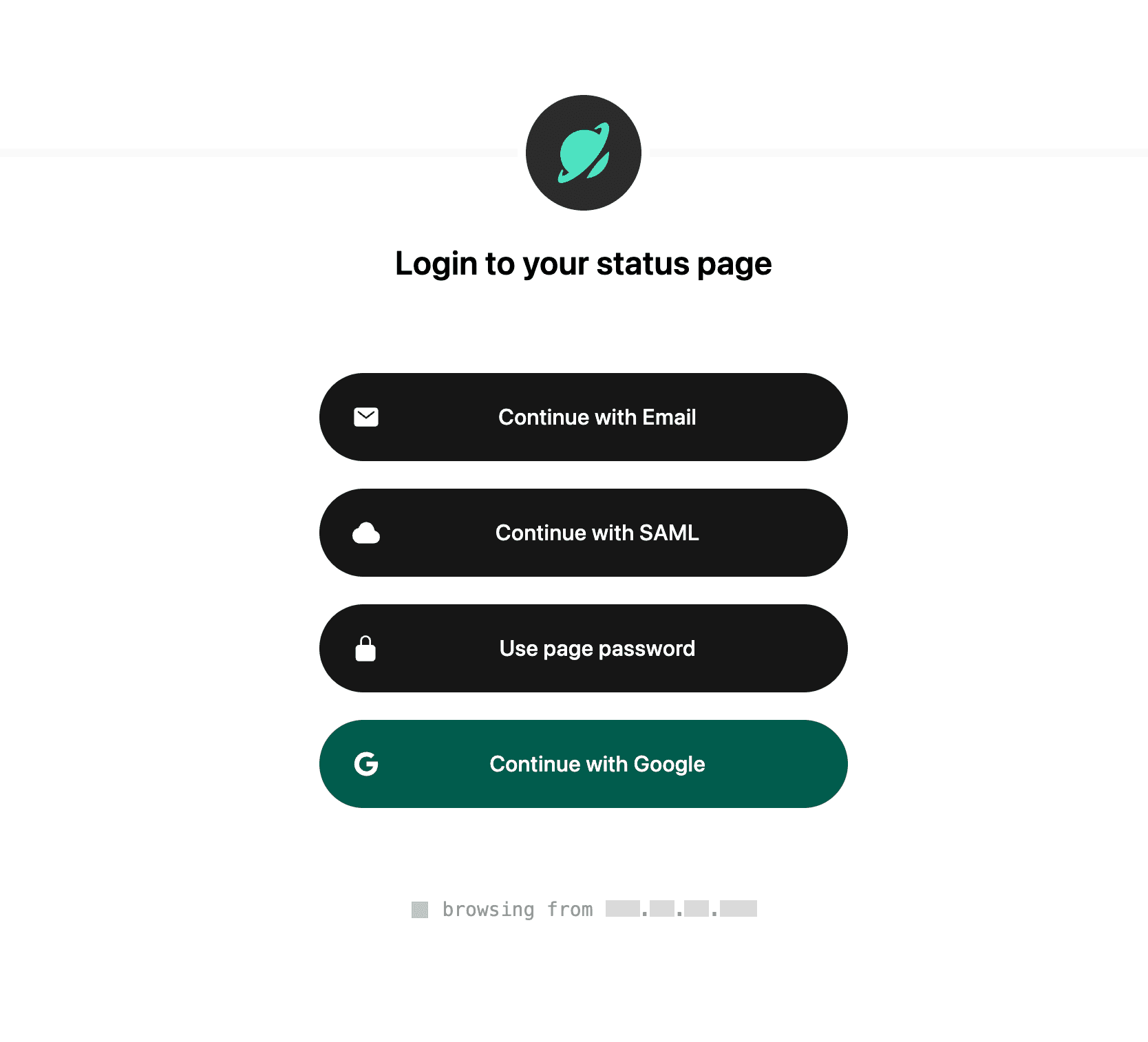
Google SSO
Members of your team will be able to use Google Auth to access your status page.
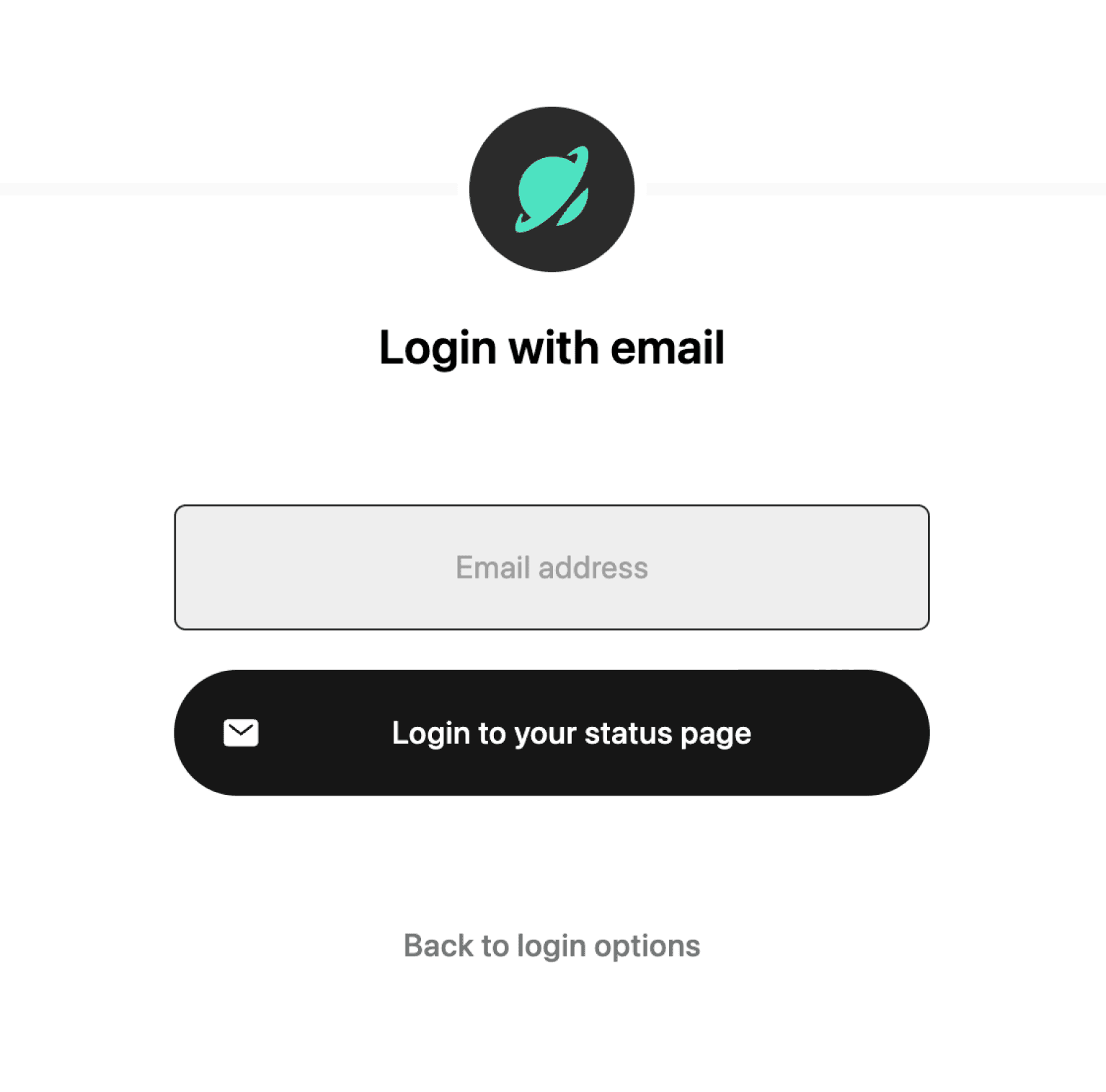
Email login
Members of your team will be able to login to your status page using their email address. They will receive an email with a link to login.
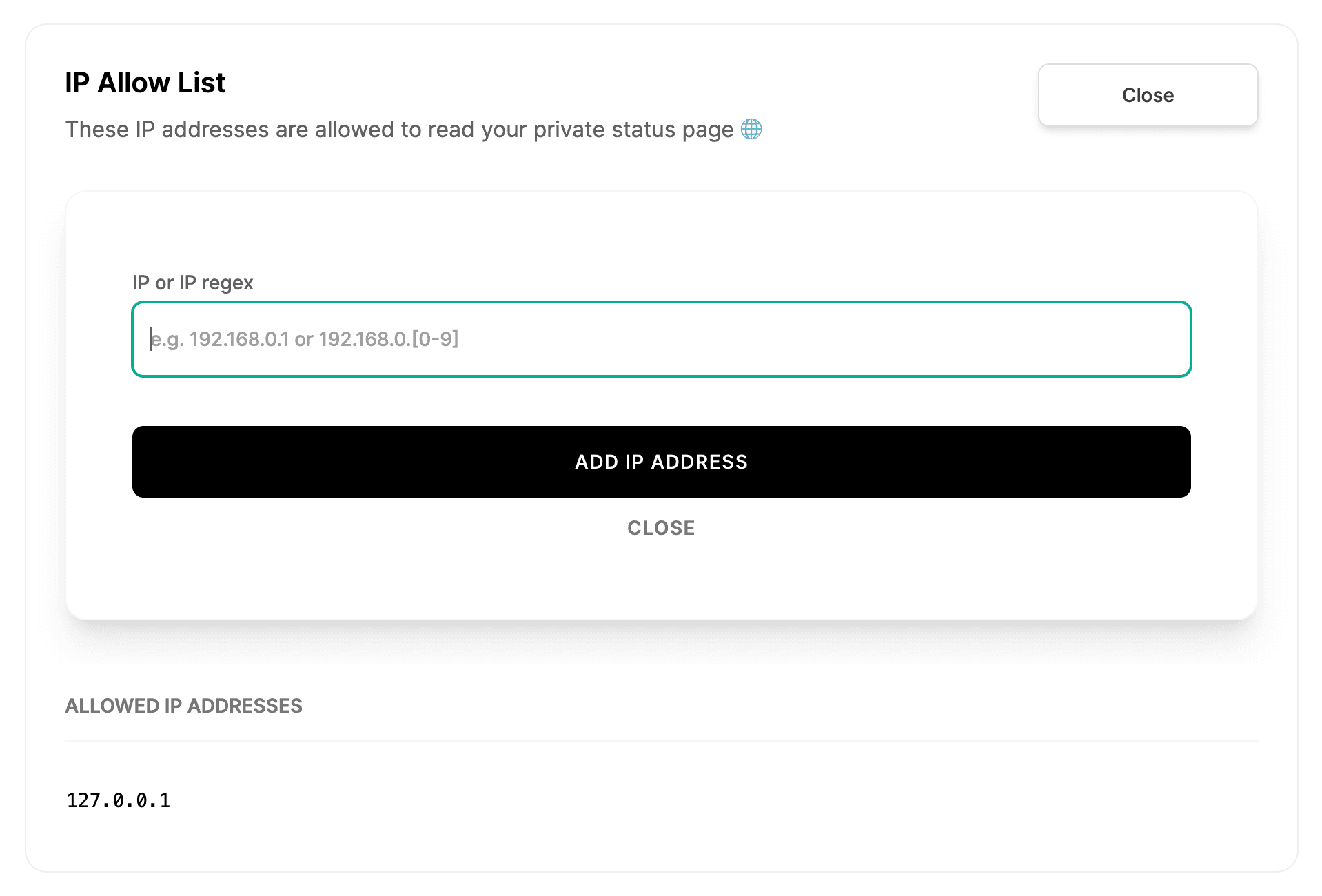
Allowed IP addresses
Members of your team will be able to access the page only from the allowed IP addresses.
You can allow:
- A single IP address — add it as is, for example
203.0.113.7. - A range of IP addresses — add it as a regex pattern, for example
203\.0\.113\..*to allow every address starting with203.0.113..
CIDR notation (like 203.0.113.0/24) isn't supported directly, but you can convert it to a regex:
- Convert the CIDR block to an IP range using this tool.
- Convert that range to a regex using this tool.
- Paste the resulting regex into your allowlist.
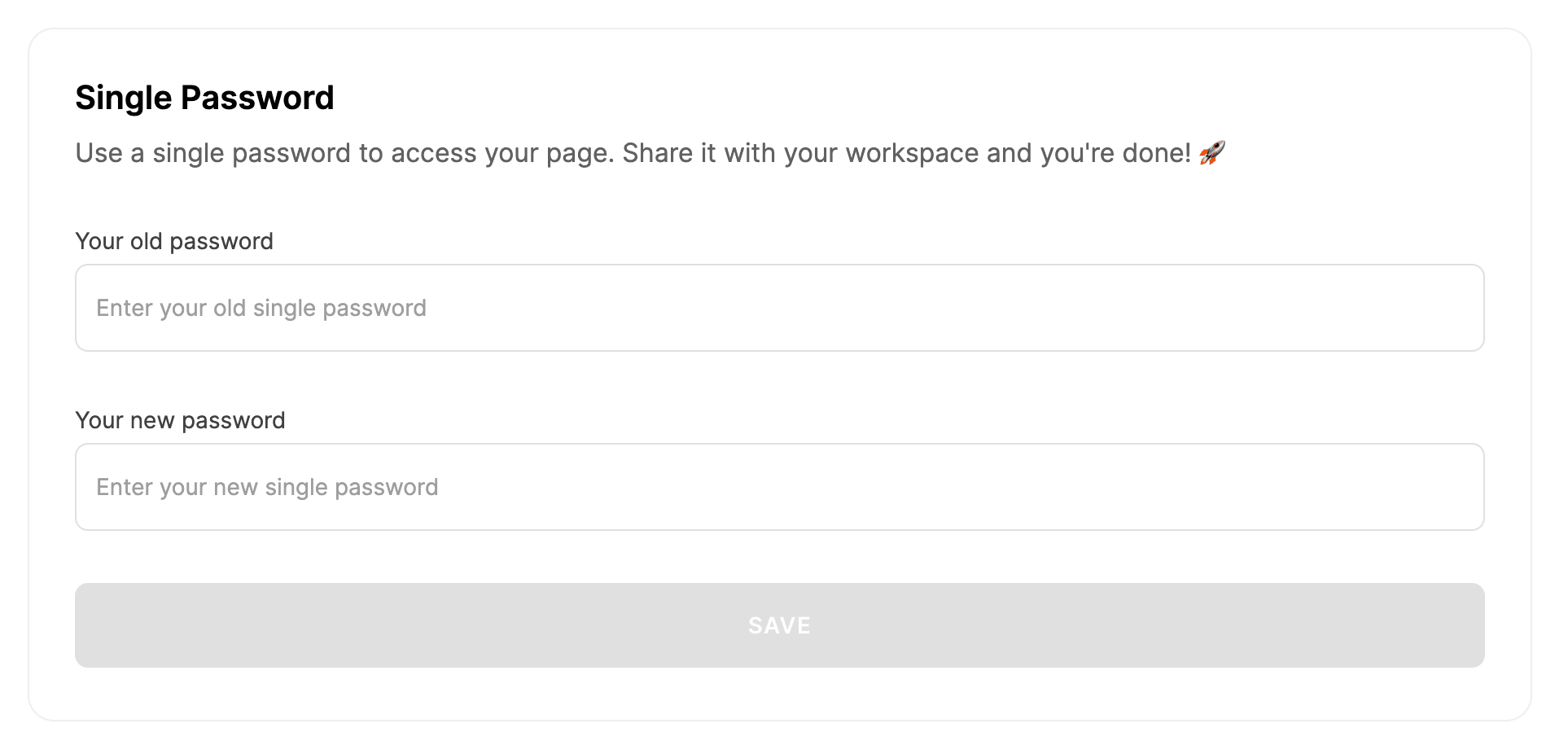
Single Password
Members of your team will be able to access the page using a single password. You can set that password and share with them.
Secure link
If you want to share your status page in an internal dashboard for people to be automatically authenticated, you can use the secure link option. You can get the link via the API or the dashboard, and use it to link to your private status page.
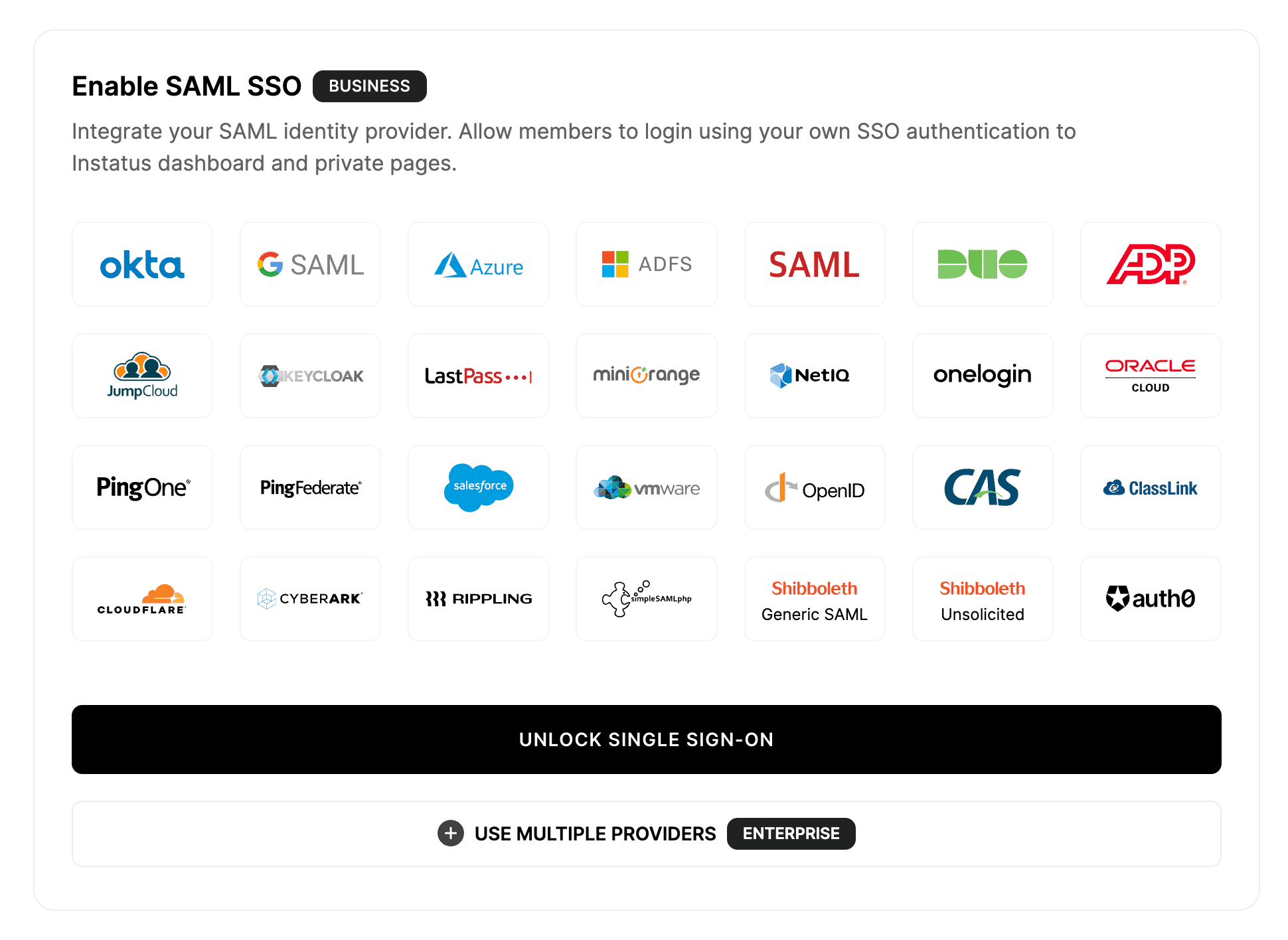
SAML SSO
You can use your own identity provider to authenticate your team members. This is only available for the Business plan. We support all major identity providers like Okta, OneLogin, Azure AD, and much more.