Get started with Monitoring
Instatus monitors check your websites, APIs, cron jobs, hosts, ports and DNS records every 30 seconds and alert your team when something breaks. Each monitor also tracks the availability and performance of the service over time.
When an incident occurs, you can collaborate with your team to resolve it. You can also optionally update your status page.
This is how your monitor list looks like:
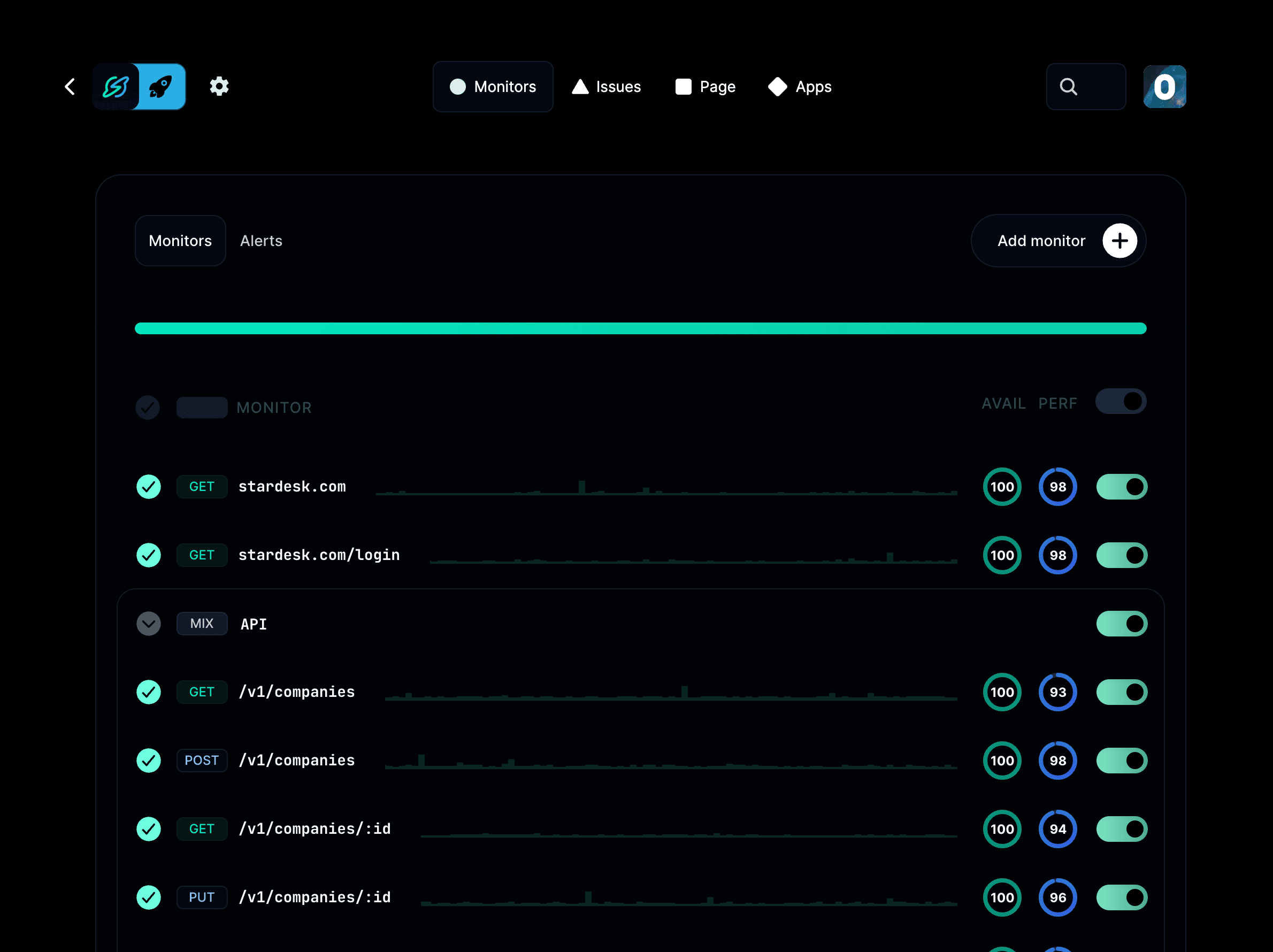
What can Instatus monitors do?
- Check from multiple locations every 30 seconds.
- Keep detailed logs of the response body, headers, and more.
- Track the availability and performance of your services.
- Define multiple conditions to ensure your service is working correctly. Check for status codes, response time, certain keywords, and more.
- Send alerts to notify your team through multiple channels, including Slack, email, SMS, phone calls, and more.
- Set up on-call schedules to notify the right person when an incident occurs.
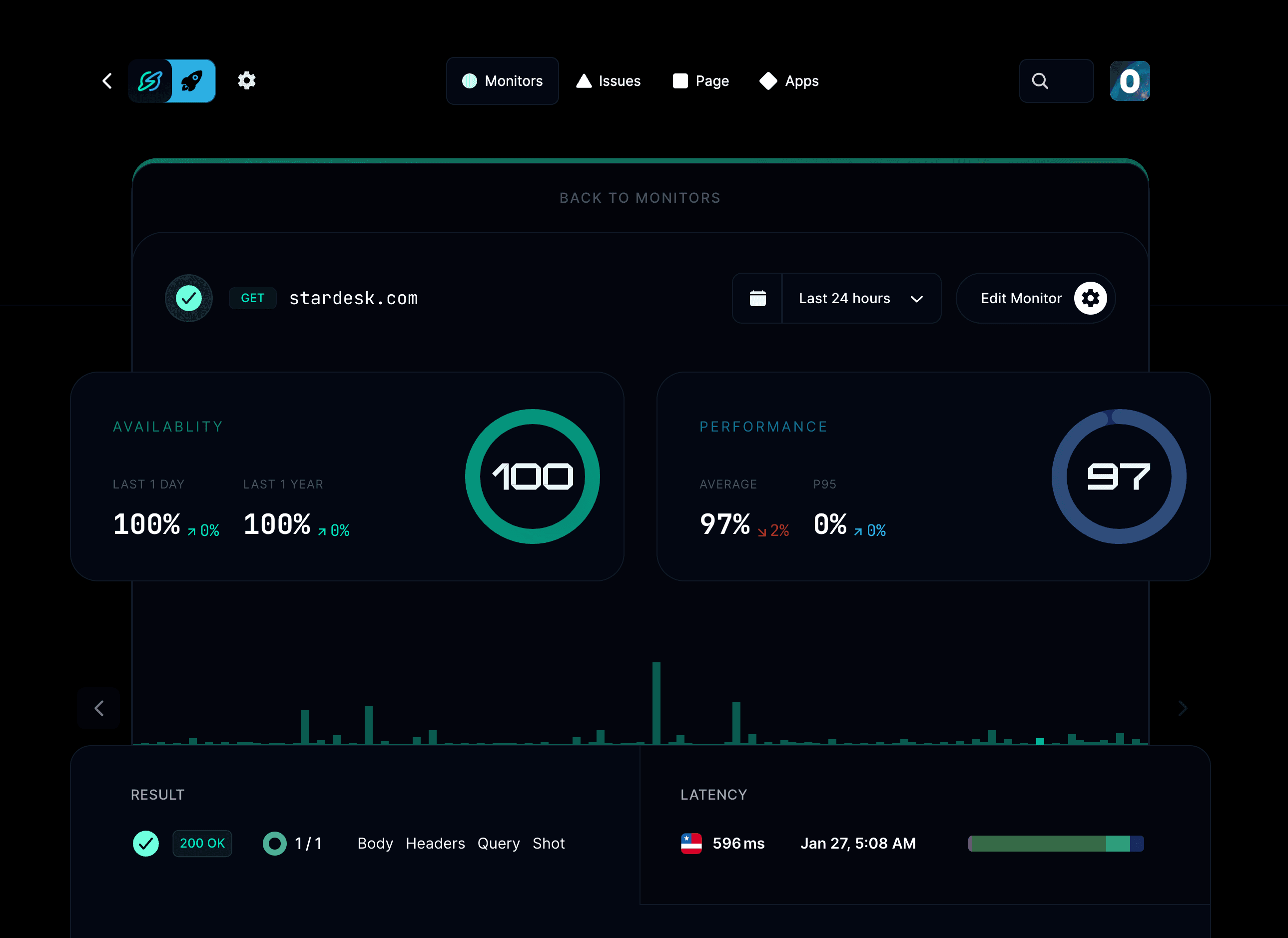
When you click on a monitor, you can see more details about it:
How do I add a monitor?
Go to your project → Monitors → Add monitor, pick a monitor type, enter the URL or host, and save.
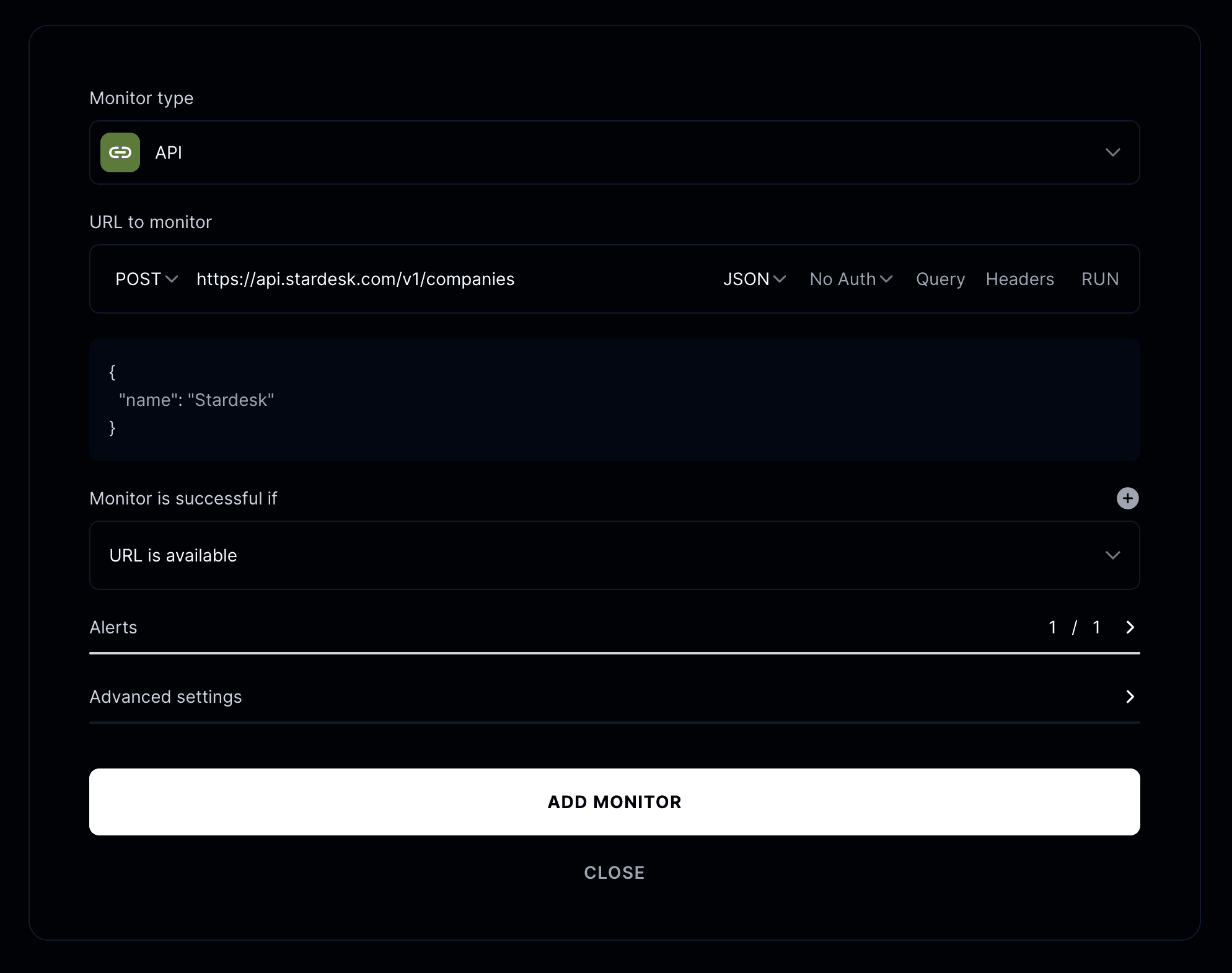
Monitor type
Choose your monitor type. You can choose from Website, API, Cron / Heartbeat, Ping, TCP, UDP or DNS.
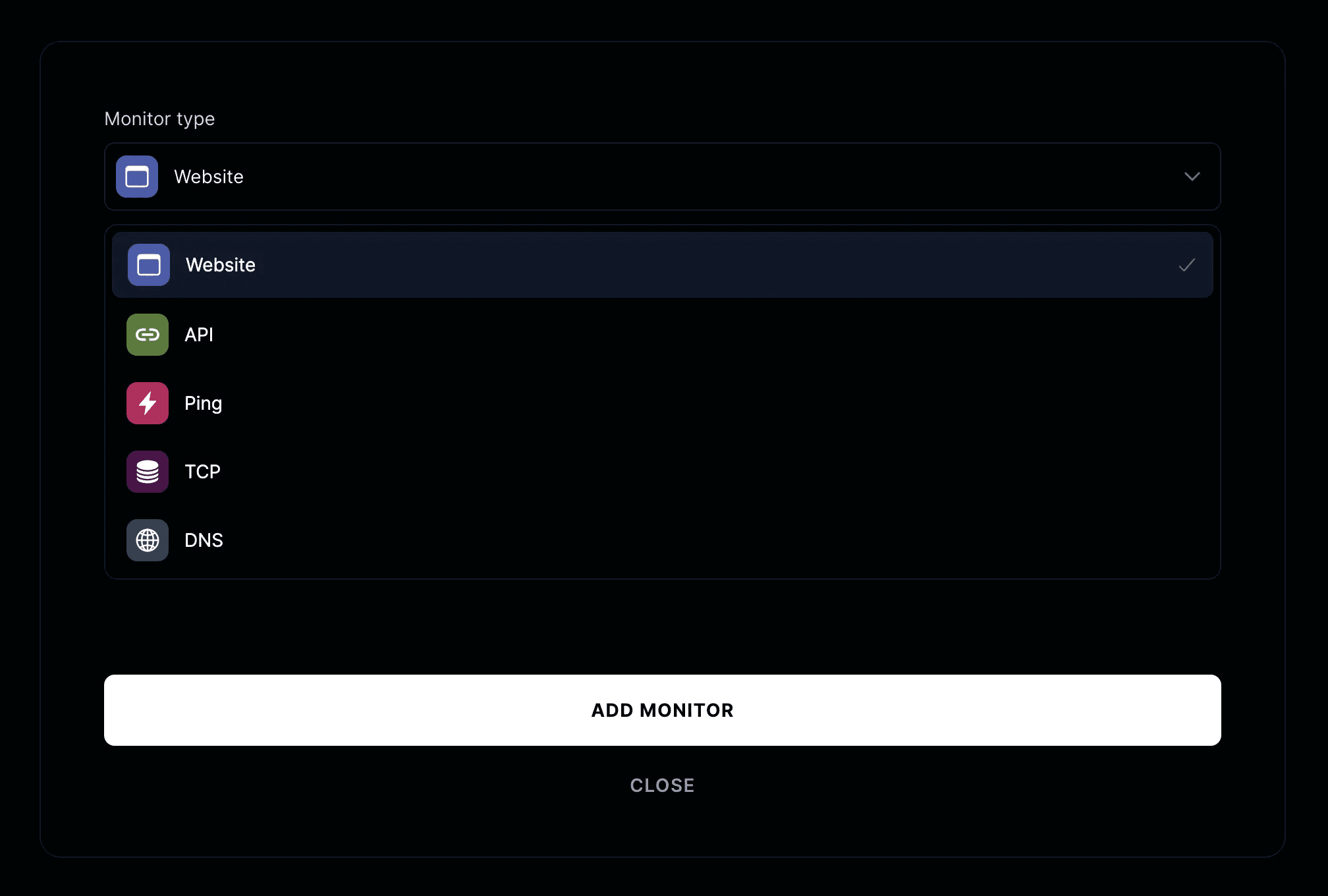
Enter the URL you want to monitor. Depending on the monitor type, this can be a specific URL or hostname.
Monitor is successful if
These are conditions that need to be met for the monitor to succeed. Based on monitor type, you have multiple assertions to choose from.
- Website (availability, body, status code, JSON body, response header, response time)
- API (availability, body, status code, JSON body, response header, response time)
- Ping (response)
- TCP (port thresholds)
- DNS (server response: A or MX)
You can set up alerts to notify you when a monitor fails or recovers.
Advanced settings
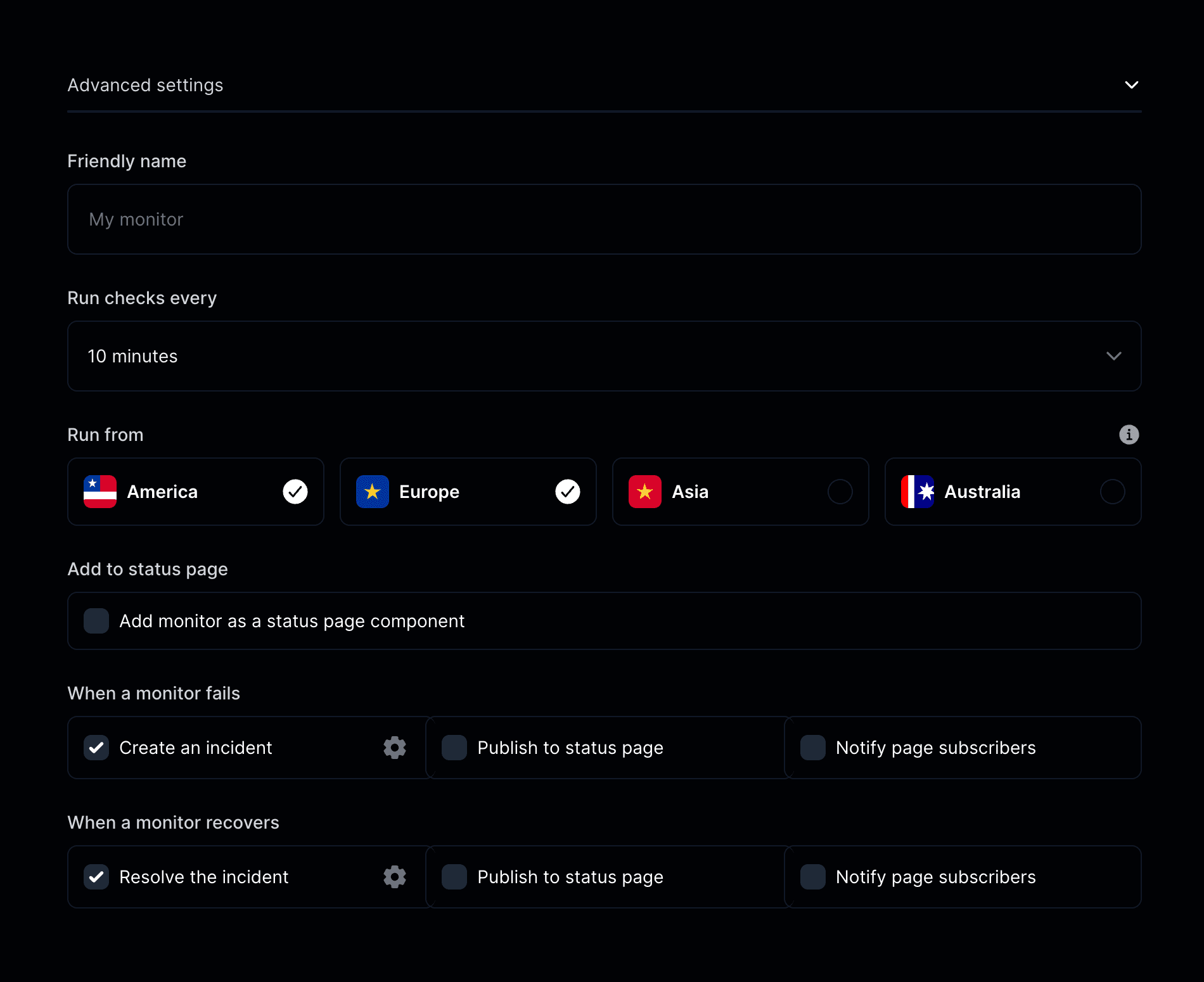
- Friendly name: Give your monitor a friendly name, just for your reference.
- Run checks every: Choose how often to run the monitor. For more frequent checks, you can upgrade to the Pro plan.
- Run from: We run checks from one location at a time; round robin. You can choose between United States, Canada, Europe, and Asia.
- Add to status page: This option allows you to add your monitor to your status page.
- When a monitor fails: You could create an incident, publish to your status page, or notify page subscribers.
- When a monitor recovers: You could resolve the incident, publish to your status page, or notify page subscribers.
How do I allowlist Instatus checks?
Allow the InstatusBot/1.0 User-Agent in your firewall, WAF or bot protection so Instatus checks are not blocked.
Every monitor request includes this User-Agent:
InstatusBot/1.0 (+https://instatus.com; support@instatus.com)
Allowlisting by IP address is not recommended. Our IPs can change over time, so the User-Agent is the more reliable option.
You can also allowlist by IP address using the list at instatus.com/ips.