Zapier + Instatus
Connect Instatus with 8,000+ apps using Zapier to automate your incident management workflows.
- Go to Instatus on Zapier
- Click Connect Instatus to 8,000+ apps to add Instatus to your Zapier account
- When prompted to authenticate, get your API key from Instatus Developer Settings and paste it into Zapier
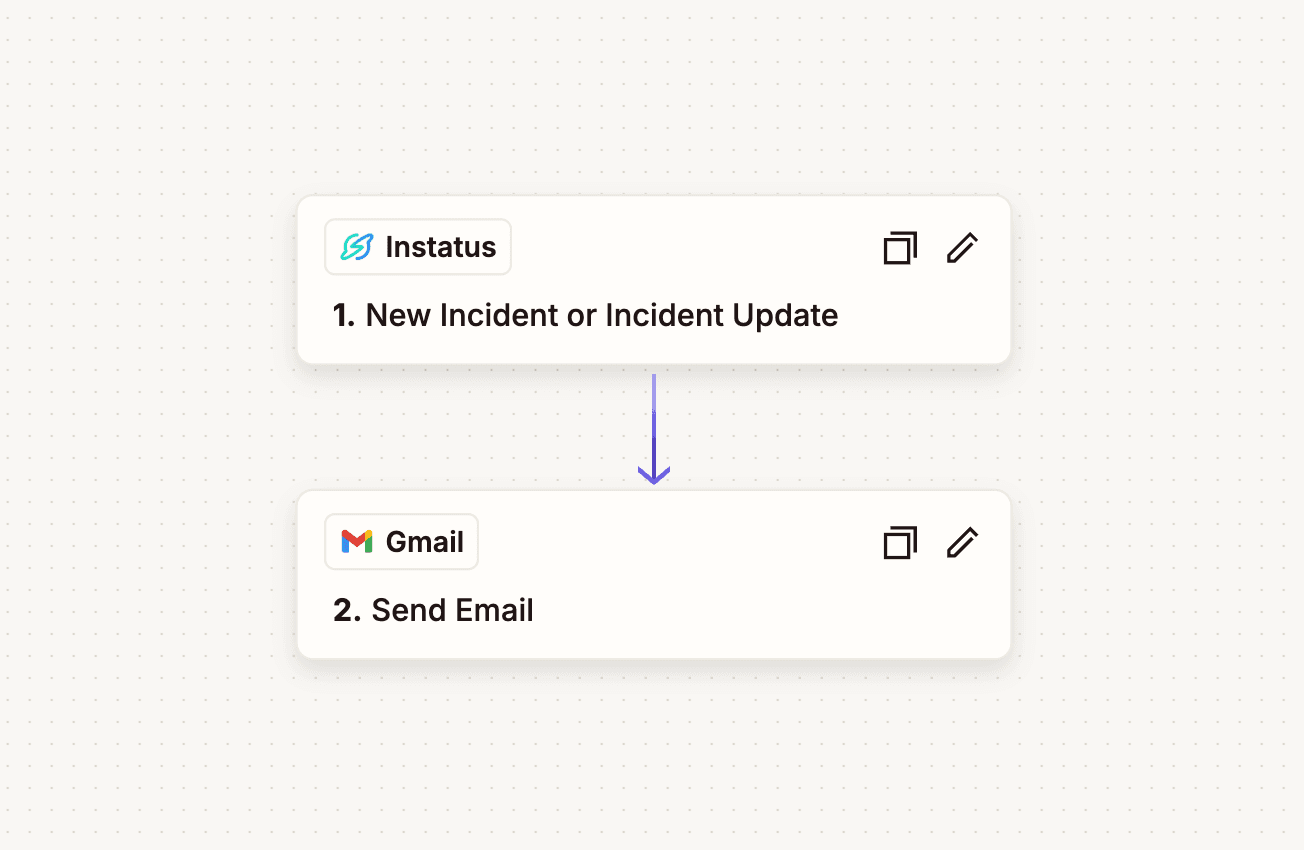
Triggers
New Incident or Incident Update
Triggers when a new incident is created or an existing incident is updated. Use this to notify your team, log incidents to spreadsheets, create tickets in other tools, and more.
Configuration
- Project: Select which Instatus status page to monitor for incidents
Trigger Data
The trigger provides the following data that you can use in subsequent Zap steps:
id- Unique incident IDtype- EitherCREATE(new incident) orUPDATE(incident update)name- Incident name/titlestatus- Current incident status (INVESTIGATING,IDENTIFIED,MONITORING,RESOLVED)started- When the incident startedresolved- When the incident was resolved (if applicable)duration- Incident duration in seconds (if applicable)impact- Impact level (OPERATIONAL,UNDERMAINTENANCE,DEGRADEDPERFORMANCE,PARTIALOUTAGE,MAJOROUTAGE)components- List of affected components (each withid,name,status)updates- List of incident updates (each withid,status,started,message)
Actions
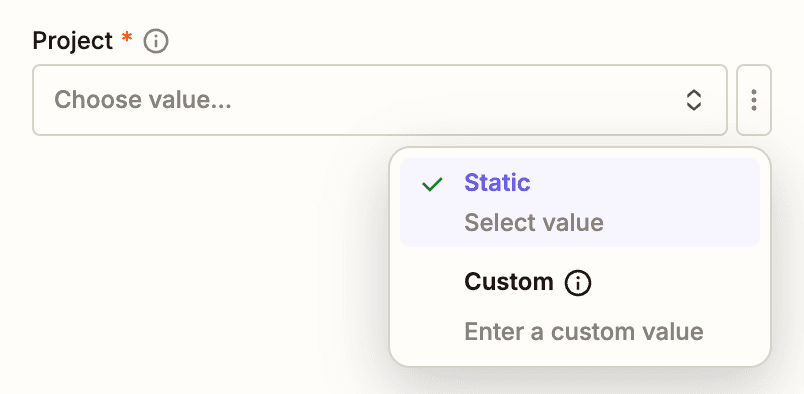
To set up an Instatus action, start by choosing the Instatus project (status page) you want to work with. If you don’t see your project in the dropdown, you can manually enter your Page ID—see the Troubleshooting section for instructions.
Once you’ve selected a project, you’ll see additional fields for configuring the action.
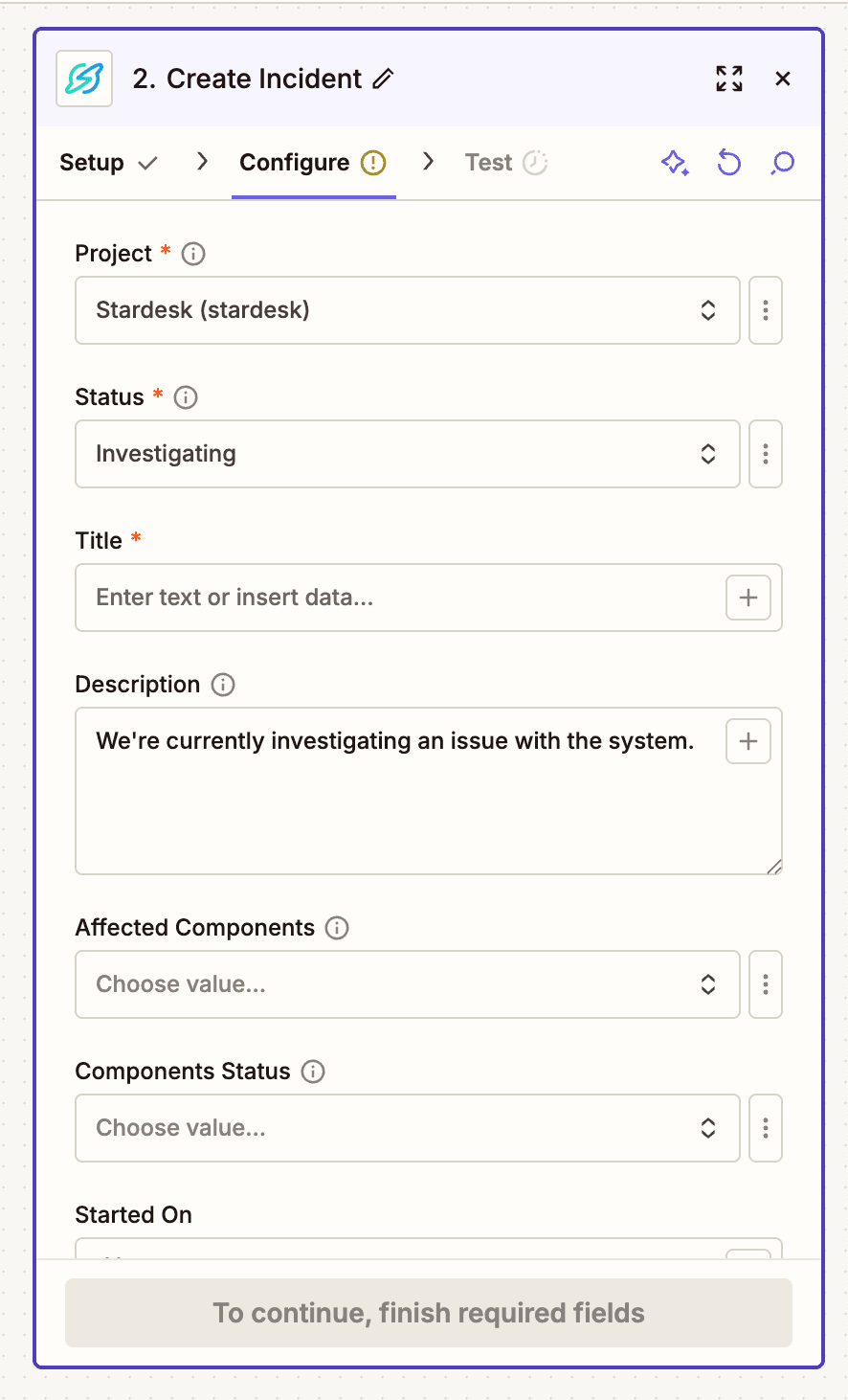
Create Incident
Create a new incident in Instatus from triggers in other apps. Use this to automatically create status page incidents from monitoring tools, ticketing systems, or any other app in Zapier.
Configuration
- Project (required) - Select which Instatus status page to create the incident on
- Status (required) - Incident status:
INVESTIGATING,IDENTIFIED,MONITORING,RESOLVED - Title (required) - The incident title/name
- Description - Message describing the incident
- Affected Components - Select which components are affected
- Components Status - Status for the affected components (e.g.,
OPERATIONAL,DEGRADEDPERFORMANCE,PARTIALOUTAGE,MAJOROUTAGE) - Started On - When the incident started (defaults to now)
- Publish incident to status page - Whether to make the incident visible on your public status page
- Notify subscribers about the incident - Whether to send notifications to your status page subscribers
Example Use Cases
- Log incidents to Google Sheets: Keep a historical record of all incidents for reporting and analysis
- Create Notion database entries: Automatically add incidents to your team's Notion workspace for tracking
- Create incidents from GitHub Issues: Trigger an Instatus incident when a critical bug is reported on GitHub
- Sync with Airtable: Build custom incident dashboards and reports in Airtable
Troubleshooting
Can't find your project in the list
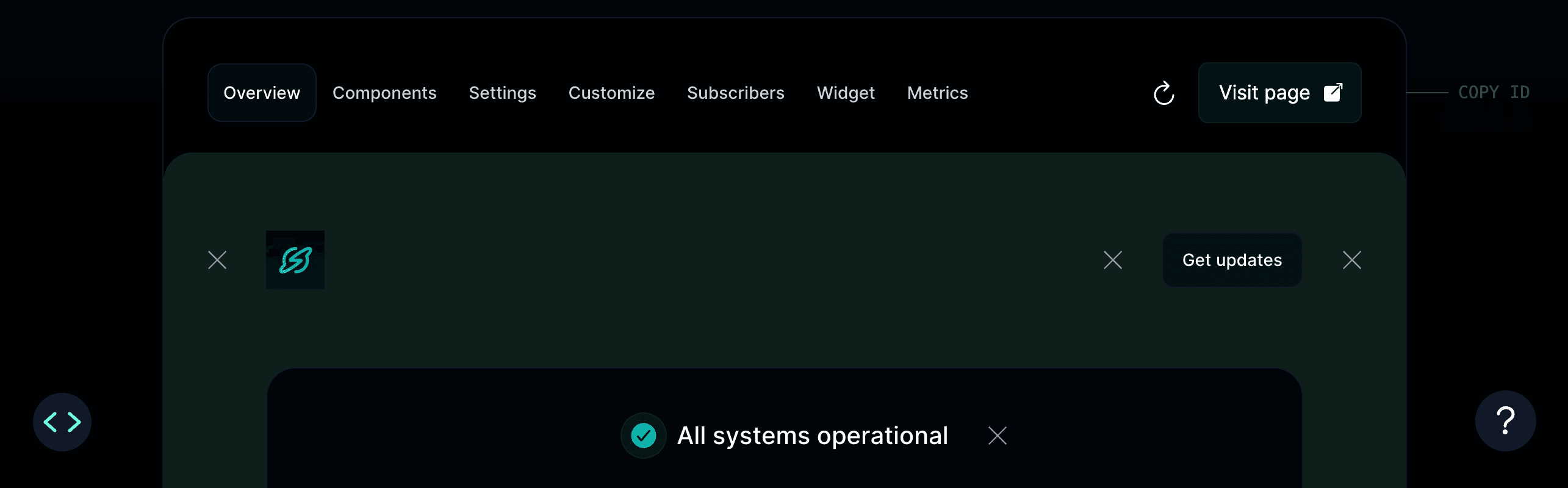
If your status page doesn't appear in the project dropdown, you can find your Page ID manually:
- Go to your status page in the Instatus dashboard
- Right-click your project in the top-left corner to open the menu
- Click Copy Project ID
- Select Custom value in Zapier's project dropdown and paste your Page ID
Trigger not firing
- Make sure your Zap is turned on in Zapier
- Verify you selected the correct project in the trigger configuration
- Check that incidents are being created or updated on the selected status page
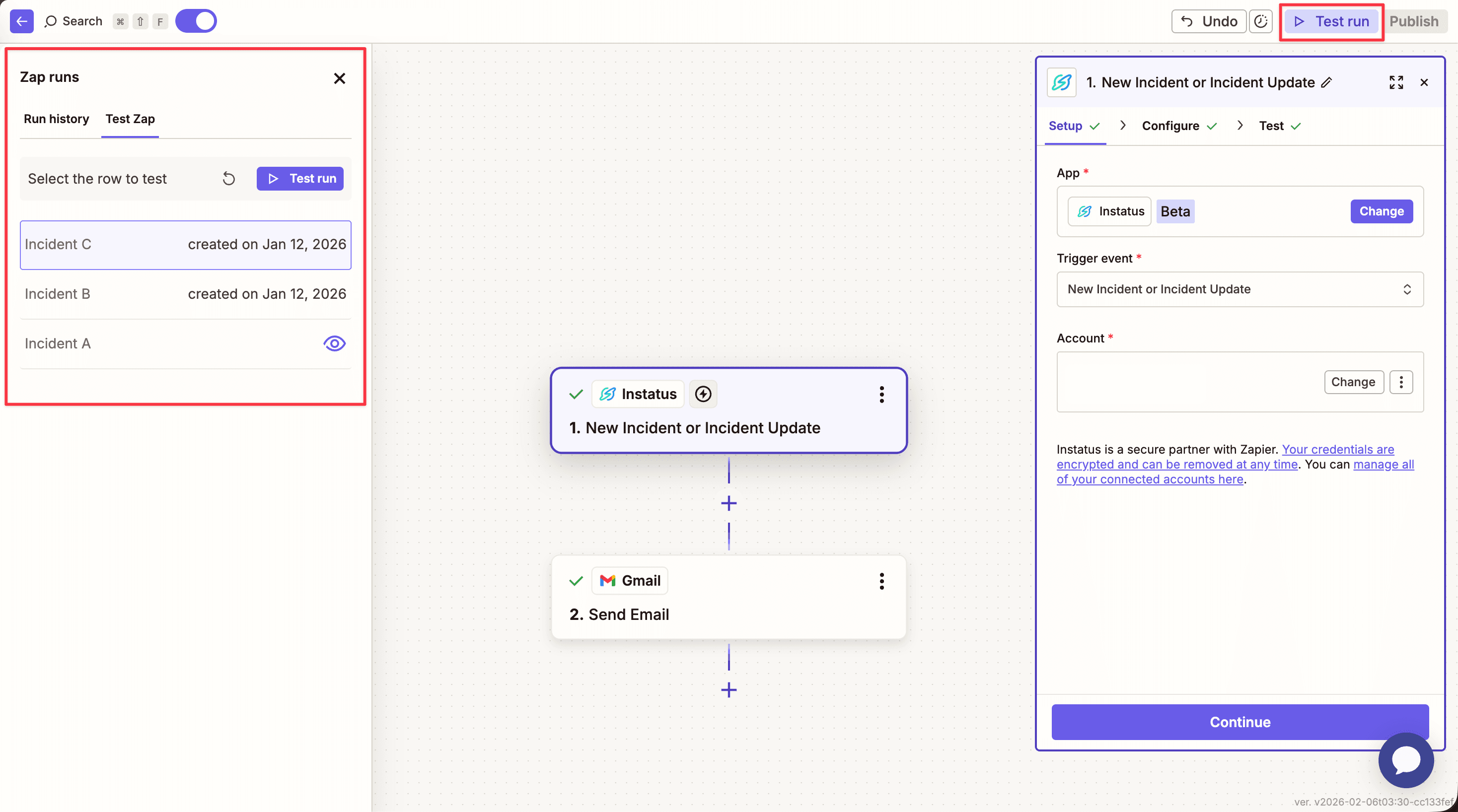
- Try testing the trigger manually in Zapier to verify the connection (Click the Test Run button and pick an incident from the list)
Authentication errors
- Ensure your API key is correct. You can regenerate it from Developer Settings
- Make sure you're pasting the full API key without any extra spaces
Components not showing up
- Ensure your status page has components configured
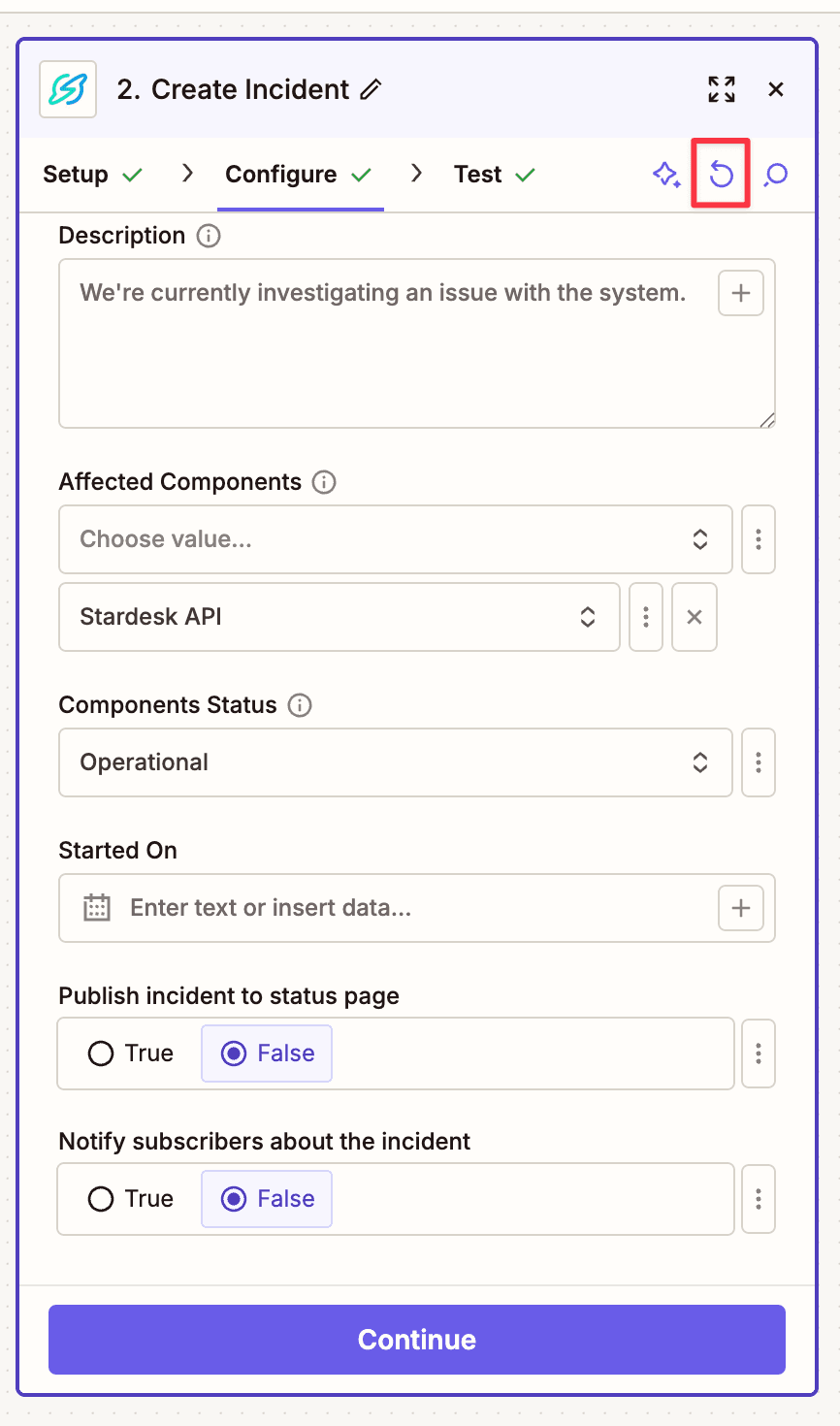
- Click Refresh fields in Zapier to load the latest components from your status page
Need more help? Contact us at support@instatus.com.