

How to Write a Cron Expression for Every 5 Minutes (Step-by-Step Examples)

Quick Summary
This article explains how to set up a cron expression to run every 5 minutes (*/5 * * * *), with best practices for logging, preventing overlaps, and monitoring. Using Instatus adds alerts and status page updates to catch failures before users notice. For more guides on monitoring, uptime, and incident management, visit the Instatus blog.
When a Cron Job Fails and Nobody Notices
A B2B SaaS company once discovered its MySQL backup job had been silently failing for 89 days. The backup partition filled to capacity, the job exited with error code 1, and nothing sent an alert. The team found out when a customer noticed missing data.
That is the real problem with cron. It does not fail loudly. It just stops running, and silence is the default.
In this Instatus guide, we'll walk through the exact cron expression for every 5 minutes, when to use it, how to set it up correctly, and how to make sure you actually know when it breaks.
Why Listen to Us?
At Instatus, we build status pages and monitoring tools for over thousands of SaaS and DevOps teams. Working closely with teams on incident communication, we have seen firsthand how undetected scheduled task failures compound into user-facing outages with no explanation ready.

That pattern shapes everything we know about cron jobs, monitoring, and the gap between a task being scheduled and a task reliably running.
What Is a Cron Expression?
Cron is a built-in Unix job scheduler. It checks a schedule file called the crontab every minute and runs any command whose scheduled time matches the current moment. If you want to understand the broader context of what cron jobs are and the kinds of tasks they power, our beginner's guide to cron jobs covers that in detail.
A cron expression has five time fields followed by the command:
* * * * * command
│ │ │ │ │
│ │ │ │ └─ Day of week (0–7, where 0 and 7 are Sunday)
│ │ │ └─── Month (1–12)
│ │ └───── Day of month (1–31)
│ └─────── Hour (0–23)
└───────── Minute (0–59)
Cron Expression Fields Explained
- Minute (0–59): When the command runs within the hour
- Hour (0–23): When the command runs during the day
- Day of month (1–31): Which calendar days the command runs on
- Month (1–12): Which months the command runs in
- Day of week (0–7): Which days of the week the command runs on (Sunday is 0 or 7)
Cron evaluates these fields left to right. A command runs only when all fields match the current time. For example, setting minute to 15 and all other fields to * fires the job at 15 minutes past every hour.
Four special characters define schedules:
*matches any value,separates multiple values (1,15)-defines a range (1-5)/sets a step (*/5= every 5 minutes)
The expression */5 * * * * runs every 5 minutes. Alternatives like 0-59/5 or listing all minutes manually are equivalent but less concise.
How to Set Up a Cron Expression for Every 5 Minutes
The expression itself is one line. The part that actually protects you in production is knowing when it stops running. Here's how to set up the cron job and add monitoring that sends alerts when it fails.
Step 1: Write Your Script
Create your script and make it executable before touching crontab. This example health check pings an endpoint and logs the response:
nano ~/health-check.sh
Add your command:
#!/bin/bashcurl -fsS https://yourapp.com/health >> /var/log/health.log 2>&1
The -f flag is critical, without it, curl exits successfully even on a failed HTTP response, meaning your monitoring would never catch a down endpoint.
Make it executable:
chmod +x ~/health-check.sh
The most common mistake that catches beginners is relative paths. Always use absolute paths. Cron runs with a minimal environment and does not load your shell's PATH. If your script calls php or python without a full path like /usr/bin/php, cron will not find it and will fail with no warning.
Beyond PATH, cron also strips any environment variables set in your shell profile, things like DATABASE_URL, API_KEY, or custom config values your script depends on. A script that works in the terminal but produces wrong results in cron often fails for this reason, not an exit-code failure, so nothing alerts you. Either export the variables explicitly at the top of your script, or define them directly in your crontab above the job line.
Step 2: Create a Cron Monitor in Instatus
Before adding the job to crontab, set up your monitor so you have the ping URL ready to drop straight into the cron line.
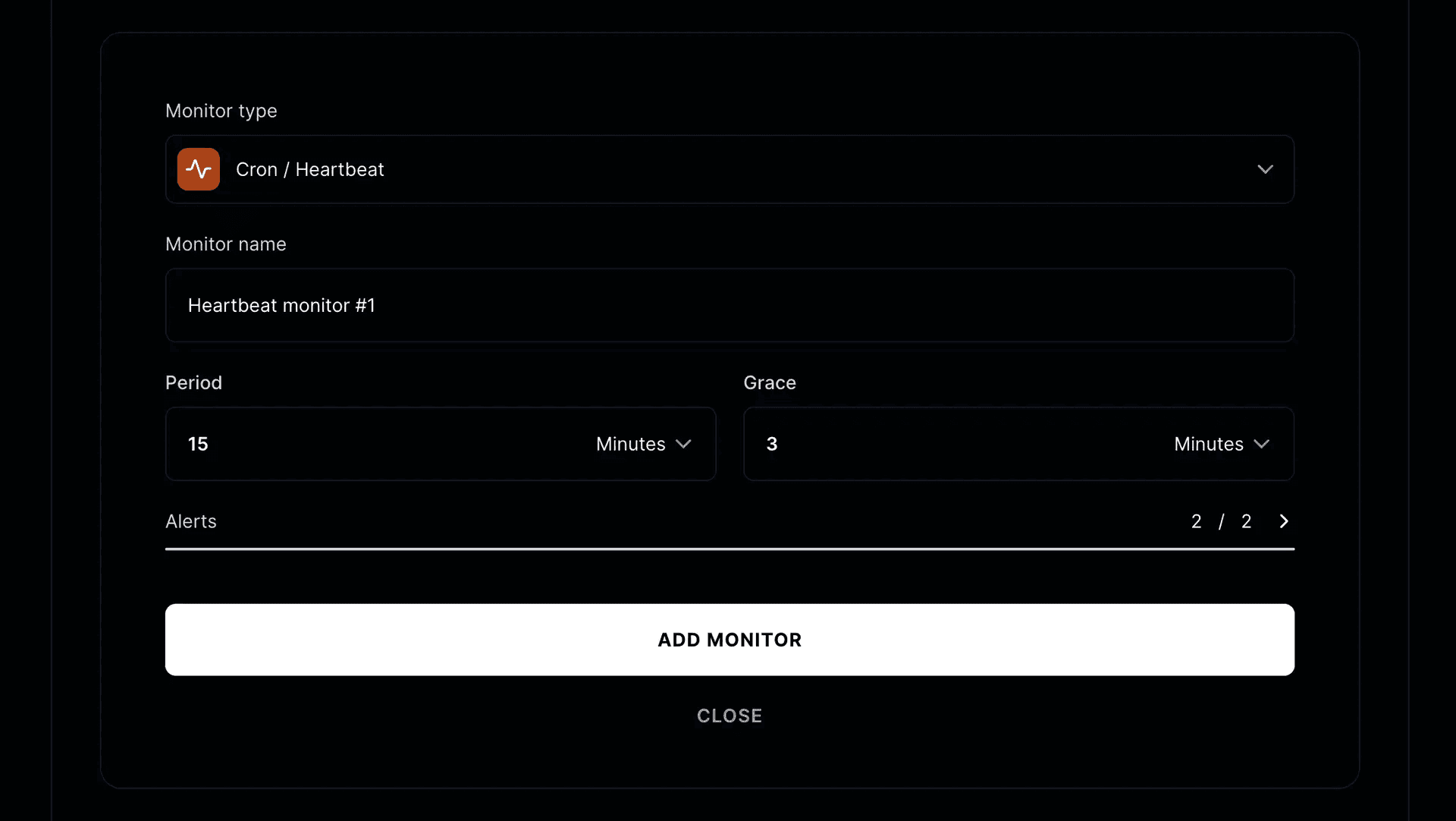
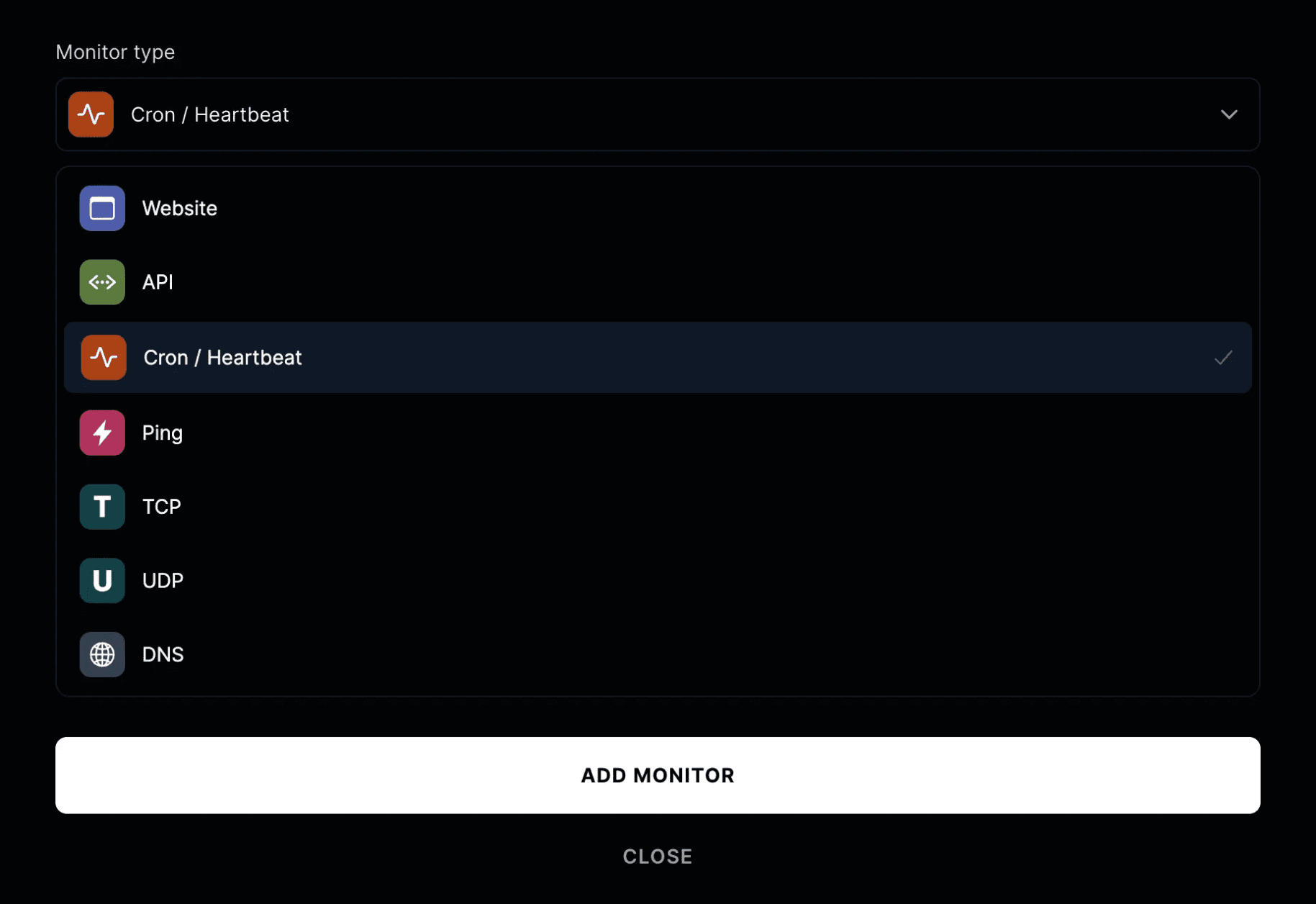
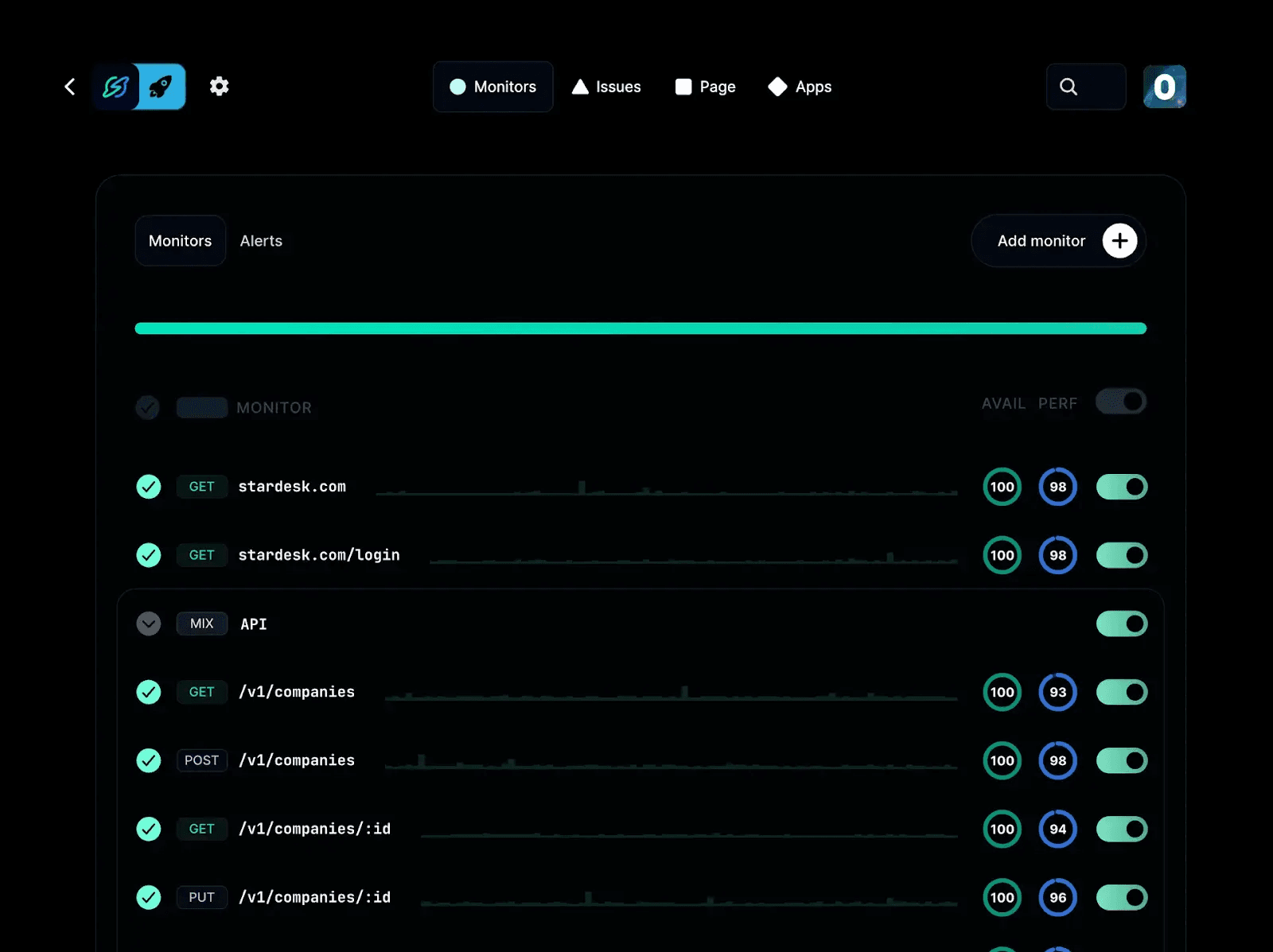
In your Instatus dashboard, go to your project, then Monitors, then Add Monitor. Select Cron/Heartbeat as the monitor type. Instatus generates a unique URL for this job:
https://cron.instatus.com/your-unique-url
While you are here, configure two settings:
- Period time: Set this to 5 minutes to match your cron schedule. This is how often Instatus expects to hear from the job.
- Grace time: Set a grace window that accounts for normal execution variance on your server. If the job pings before the grace window closes, the monitor stays degraded rather than going fully down. If no ping arrives by the end of the grace window, the monitor goes down and alerts fire.
Calculate your grace period as normal execution time plus variance. If your job typically runs in 10 seconds but occasionally takes 30, set grace to 1 minute. Too tight creates alert fatigue. Too loose delays detection of real failures.
The degraded and down states are doing different work. Degraded means the job has not pinged on schedule yet but is still within the grace window, a signal to watch, not necessarily to act. Down means the grace window has passed with no ping, and something has genuinely stopped running.
Step 3: Open Your Crontab and Add the Expression
crontab -e
Add your job with the Instatus ping appended directly to it:
*/5 * * * * /home/yourusername/health-check.sh && curl -fsS https://cron.instatus.com/your-unique-url
If you want execution time tracking as well, use the start and success signals. Send a start ping when the job begins and a success ping when it finishes. Instatus records the duration of each individual run, which is useful for spotting jobs that are taking longer than expected:
*/5 * * * * curl -fsS https://cron.instatus.com/your-unique-url/start \&& /home/yourusername/health-check.sh \&& curl -fsS https://cron.instatus.com/your-unique-url
The && chain only catches exit-code failures. If your script exits 0 but produces a bad result (a sync that ran but wrote nothing, a report that generated an empty file), the success ping still fires and Instatus has no way to know something went wrong. For those cases, call the /fail endpoint directly from inside your script. Instatus marks the monitor as down immediately and alerts fire without waiting for the next missed window:
https://cron.instatus.com/your-unique-url/fail
Step 4: Configure Your Alert Channels
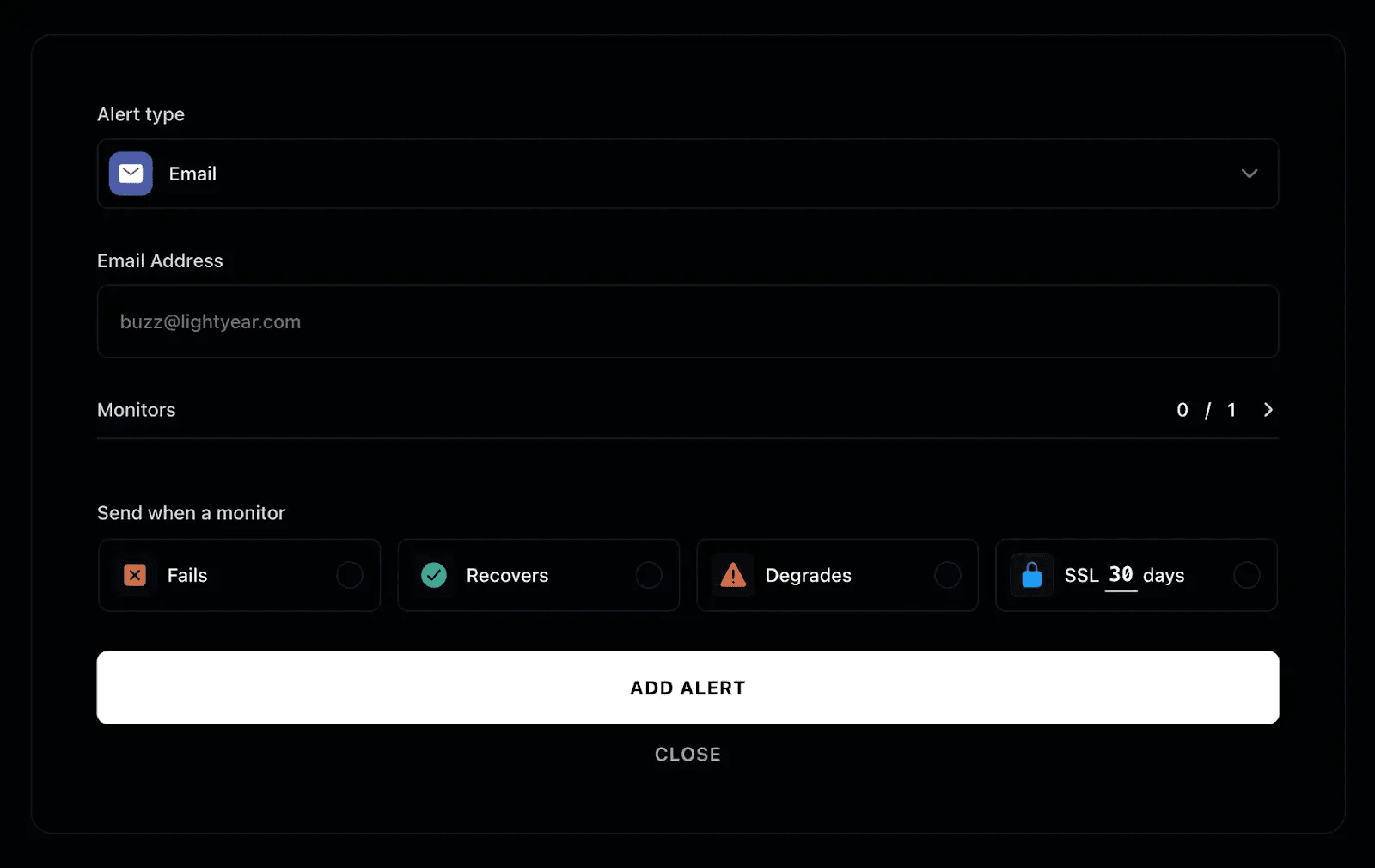
Instatus supports multiple alert channels. Which ones are available depends on your plan. Starter includes email, Pro adds SMS, and Business adds phone calls. Slack, Microsoft Teams, Discord, and Google Chat are available across all plans.
In your Instatus monitor's alert settings, configure at least two channels: a team-wide channel like Slack for visibility, and a direct channel (SMS or a call) for whoever is on-call. For a job running every 5 minutes, the gap between failure and alert should be as short as possible, so pick channels your team actually monitors outside business hours.
While you are in alert settings, also enable recovery alerts. Instatus can notify you when a monitor returns to health after being down, these are not on by default and need to be enabled alongside your failure alerts. A recovery alert confirms your fix worked without anyone having to check the dashboard manually.
Step 5: Verify the Job Was Added
crontab -l
Confirm the line is there, then wait 5 minutes. Check your monitor history to see whether the job ran. A successful ping shows up within seconds of execution. When the period passes with no ping, the monitor moves to degraded and your first alert fires before anything downstream breaks. That is Instatus doing the work cron cannot do on its own: turning silence into a signal.
Monitor your alert patterns for the first week. If alerts fire for transient issues that self-resolve, increase your grace period. Reliable monitoring depends on alerts you trust enough to act on immediately.
If you want to cross-check at the system level, the cron logs will show whether the job was invoked at all:
Ubuntu/Debian:
grep CRON /var/log/syslog | tail -20
CentOS/RHEL:
tail -20 /var/log/cron
systemd (Ubuntu/Debian):
journalctl -u cron -f
systemd (CentOS/RHEL):
journalctl -u crond -f
Step 6: Connect the Monitor to Your Status Page
When a cron-powered service goes down, your users notice before you do. They refresh the dashboard, see nothing, and file a support ticket, or worse, quietly churn.
Connecting your Instatus monitor to a status page component closes that gap. When the monitor goes down, update the component status directly from the incident view. Users land on one authoritative page that tells them the issue is known and being addressed, which can meaningfully reduce inbound support volume on its own.
Your team gets the alert. Your users get the status page. Nobody is left guessing, and your support queue stays manageable.
Best Practices for 5-Minute Cron Jobs
Choose the Right Interval
Five-minute schedules work well for tasks that need to stay current without running constantly: health checks, queue length monitors, cache warmers, log rotation, and API sync jobs. They are a poor fit for heavy database queries, full backups, or any job that routinely takes more than 5 minutes to complete. If a job runs for 6 minutes and fires every 5, you end up with overlapping instances piling up.
Understand the Execution Volume
The 5-minute interval is commonly used for monitoring and maintenance tasks. It is frequent enough that users notice issues within minutes rather than hours, but sparse enough to avoid overwhelming your server or API rate limits. For context, 288 executions per day means 8,640 runs per month. If your job writes to a database or calls an external API, verify that this volume stays well within your quotas before deploying.
Prevent Overlapping Runs
Use flock to ensure only one instance runs at a time:
*/5 * * * * /usr/bin/flock -n /tmp/job.lock /path/to/script.sh
If a previous instance is still running when the next fires, flock exits the new one immediately. Note that flock is part of util-linux and is standard on Linux. macOS users will need to install it via Homebrew or use a different locking mechanism.
Keep Output Visible
Do not redirect everything to /dev/null while a new job is getting established. Log output while validating behavior:
*/5 * * * * /path/to/script.sh >> /var/log/myjob.log 2>&1
You can also add MAILTO="you@example.com" at the top of your crontab to receive job output by email, which is useful for catching intermittent issues that do not surface on every run.
Watch Out for UTC
Cron uses the server's local timezone, not yours. Run date to check what your server considers the current time. If your server is set to UTC and you expect local time behavior, your */5 expression is firing at UTC minutes, which may not align with what you intended. On CentOS/RHEL systems, you can set CRON_TZ=America/New_York at the top of your crontab to override the schedule timezone without touching the server clock. On Ubuntu/Debian, support depends on the cron implementation installed. If CRON_TZ has no effect, manually calculate the UTC offset or switch to systemd timers for reliable timezone-aware scheduling.
Communicate Failures to Your Users
Most teams miss this step. When a 5-minute cron job powers a user-facing feature such as data syncs, scheduled reports, or notification queues, its failure directly affects users. They do not know what cron is. They know their dashboard stopped updating.
Bridge the Gap with a Status Page
When a cron-powered service degrades, a status page gives users one authoritative place to check instead of filing tickets or assuming the product is broken. It also signals you are already aware of the issue, which on its own reduces inbound support volume during an incident.
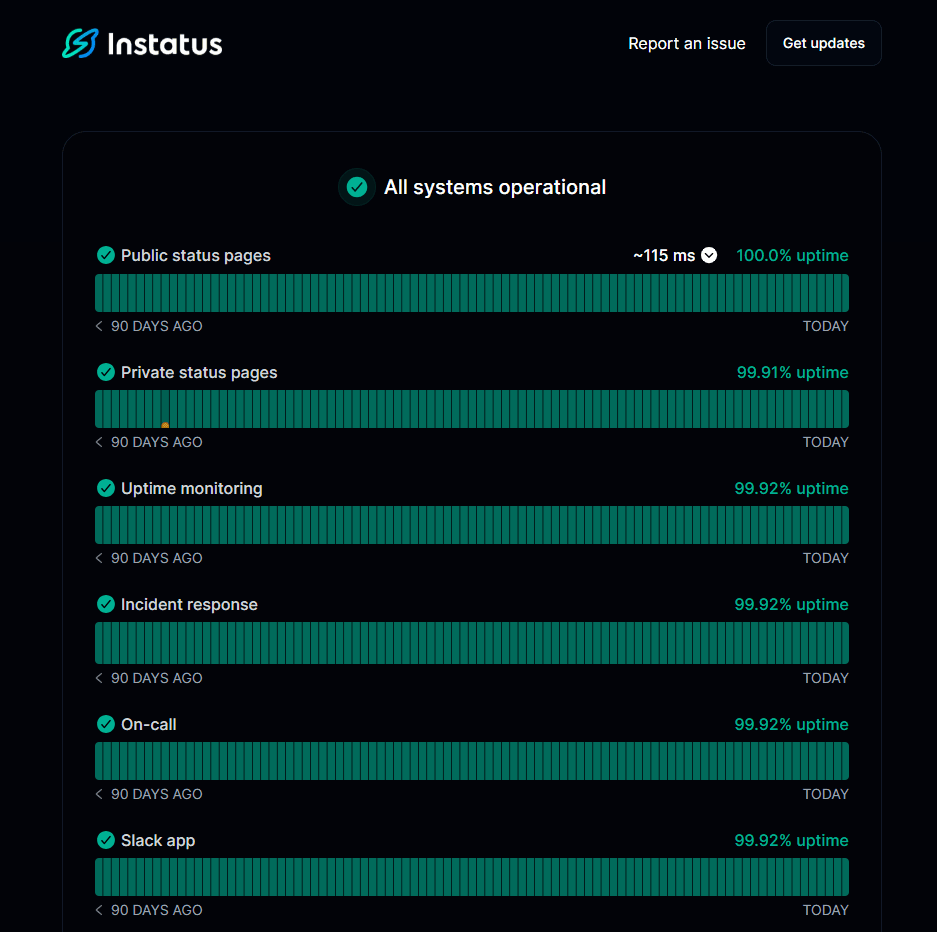
When something breaks, update the component status, post a brief note on what is happening, and let your monitoring alerts handle notifications, all from one place. If you want a structured approach to handling the communication side of these incidents, our guide on outage communication plans walks through it step by step.
Common Troubleshooting
- Job never runs. Check whether the cron service is active:
# systemd systemssudo systemctl status cron# older init systemssudo service cron status
- Script works manually but fails in cron. Almost always a PATH issue. Add the full path to every binary, or set PATH explicitly at the top of your crontab:
PATH=/usr/local/sbin:/usr/local/bin:/usr/sbin:/usr/bin
-
No output or errors to debug. You are likely discarding output. Add
>> /var/log/myjob.log 2>&1to your cron line to capture everything. -
Multiple instances running at once. Your job takes longer than 5 minutes. Use
flockas shown in the best practices section above.
Set It Up Once, Then Make Sure It Keeps Running
Writing the cron expression is the straightforward part. The harder problem is knowing when a job that ran perfectly yesterday quietly stopped working overnight. Add output logging while you are getting a new job established, use flock to prevent overlapping runs, and set up a heartbeat monitor so failures surface before users notice.
And if a failing job affects your users, tell them before they have to ask. Instatus gives you a status page with uptime monitoring and multi-channel alerting built in, and you can get started for free.
Frequently Asked Questions (FAQs)
Does */5 work on all Linux systems?
Yes. The step syntax is supported across all modern distributions including Ubuntu, Debian, CentOS, RHEL, and Alpine. It also works natively on macOS.
What is the minimum cron interval?
One minute. Cron checks its schedule every 60 seconds, so sub-minute scheduling is not natively possible. For intervals under a minute, use a loop inside a script that sleeps between iterations.
Can cron run every 5 seconds?
Not natively. Use a while loop with sleep 5 inside a script, then schedule that script with a standard cron expression.
Why does my job work in the terminal but not in cron?
Cron runs in a stripped-down shell without your user profile. Use absolute paths for every command and binary in your cron commands.
Does cron use UTC or local time?
It uses the server's local timezone. Run date on your server to confirm what timezone it is operating in.

Get ready for downtime
Monitor your services
Fix incidents with your team
Share your status with customers